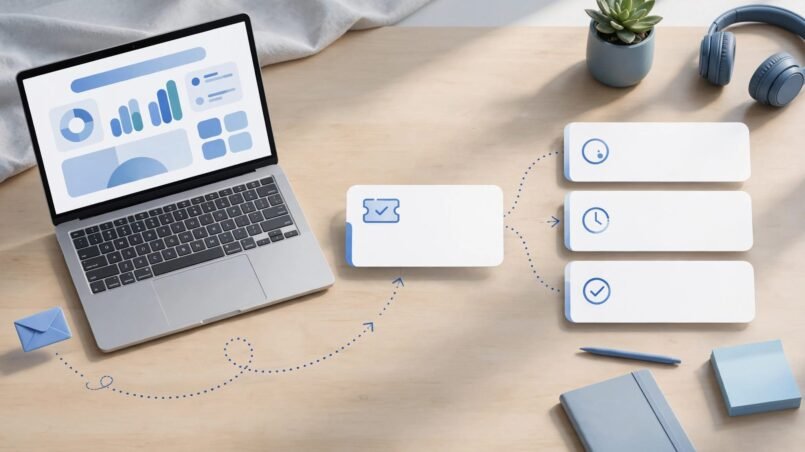
Salesforce Email-to-Case turns incoming support emails into cases, so your team can manage requests without copying messages into Salesforce manually. A dependable setup needs a verified routing address, mailbox forwarding, clear ownership, and reliable reply threading.
For SaaS teams, the biggest risk is a request that creates a case but never reaches the right agent. Treat case ownership as part of setup, rather than something to fix after launch.
Start with one support inbox and prove the complete conversation works before adding more routing logic.
Key Takeaways
- On-Demand Email-to-Case lets Salesforce process forwarded support emails without a locally installed email agent.
- Your public support address and Salesforce’s generated email-service address have different jobs. Verification and forwarding are separate steps.
- Queue ownership, reply threading, and agent access need testing independently. Successful case creation alone doesn’t prove the support workflow works.
Choose the Right Email-to-Case Approach
Salesforce offers standard Email-to-Case and On-Demand Email-to-Case. The standard approach uses an installed email agent. The on-demand approach processes messages forwarded to a Salesforce-generated address.
For a small SaaS support team, we recommend starting with On-Demand Email-to-Case unless an established technical requirement calls for the installed agent.
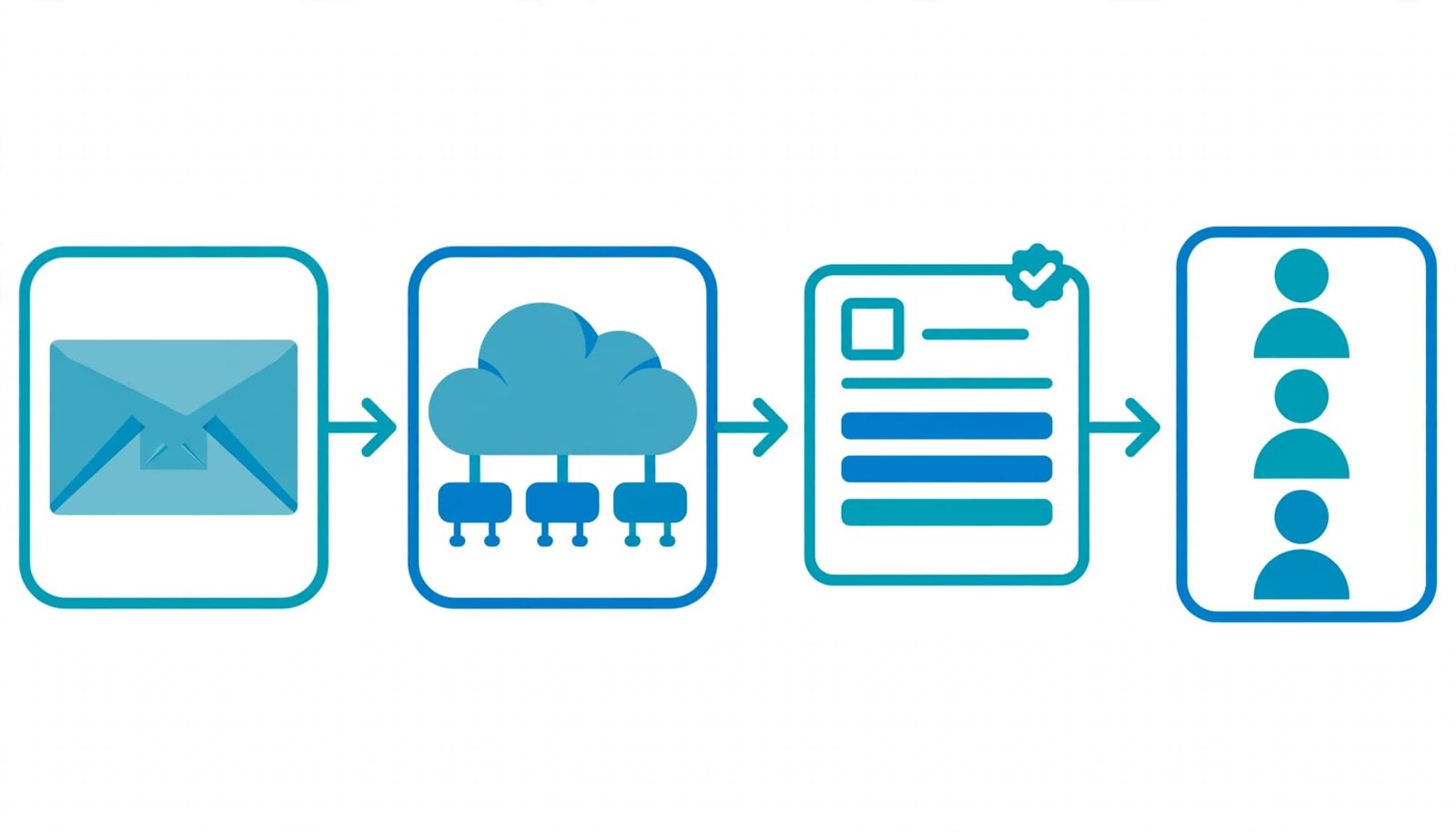
Customers keep emailing your normal support mailbox. Your mail system forwards those messages to Salesforce, which creates cases and associates subsequent replies through threading.
Email-to-Case provides intake, not a complete support operating model. Assignment rules, escalation logic, permissions, and any Omni-Channel configuration remain separate concerns.
Available options can vary by Salesforce edition and configuration. The steps below focus on the on-demand workflow, rather than agent installation.
Enable Salesforce Email-to-Case
Turn On Email Processing
Required: In Salesforce Setup, enter Email-to-Case in Quick Find and open the matching setup page. Open the settings for editing, enable Email-to-Case, and enable the on-demand service. Save your changes.
Enabling Email-to-Case activates the feature. Enabling the on-demand service allows Salesforce to process messages through its hosted email-service addresses.
Salesforce also provides a Service Cloud guided setup flow for an initial routing address. However, the Email-to-Case setup page is the direct route for managing settings and additional addresses.
This step doesn’t connect your mailbox yet. Incoming customer messages still need a verified routing address and forwarding configuration.
Establish Automated and Fallback Ownership
Required for a dependable setup: Configure the Automated Case User and default case owner in your support settings.
The Automated Case User identifies automated case activity. It doesn’t replace the person or queue responsible for responding to customers.
The default case owner provides fallback ownership. Choose a monitored support user or queue rather than leaving unexpected requests with an administrator.
Recommended: Document who reviews that fallback queue and how often. A fallback without an accountable reviewer can hide failed routing behind apparently successful case creation.
Create and Connect Your Routing Address
Register and Verify the Support Inbox
Required: In the Email-to-Case setup page, find Routing Addresses and create a routing address for your public support mailbox.
Give it a recognizable routing name. Configure its inbound address and, where available, its owner, priority, and record type. These values define how requests arriving through that address enter your case workflow.
For example, a billing inbox can use billing-specific defaults without forcing every general support request into the same category.
After saving, complete the verification sent to the mailbox. Salesforce’s guidance on multiple Email-to-Case addresses describes managing these addresses from Setup.
Verification matters beyond sending permission. An unverified address can’t send email, and its routing settings aren’t applied to cases created through it.
Forward Mail to Salesforce’s Service Address
Required: Salesforce generates an email-service address for the routing address. Configure your mail system to forward incoming support messages to that generated address.
Keep the distinction clear: customers use your public mailbox, while your forwarding configuration uses the Salesforce address.
Recommended: Preserve the original message and its headers where your mail system supports that behavior. Also, inspect existing forwarding rules before adding another path. Two routes carrying the same message into Salesforce can produce unexpected results.
The Accept Email From setting restricts accepted senders by address or domain. Leaving it blank accepts messages from any sender or domain.
For a public support inbox, a narrow restriction can block legitimate customers. Use it deliberately for controlled channels, not as a substitute for a broader spam-management policy.
Route Cases Without Conflicting Ownership Rules
Start With Queues and Simple Defaults
Recommended: Use a small number of support queues before building complex assignment logic.
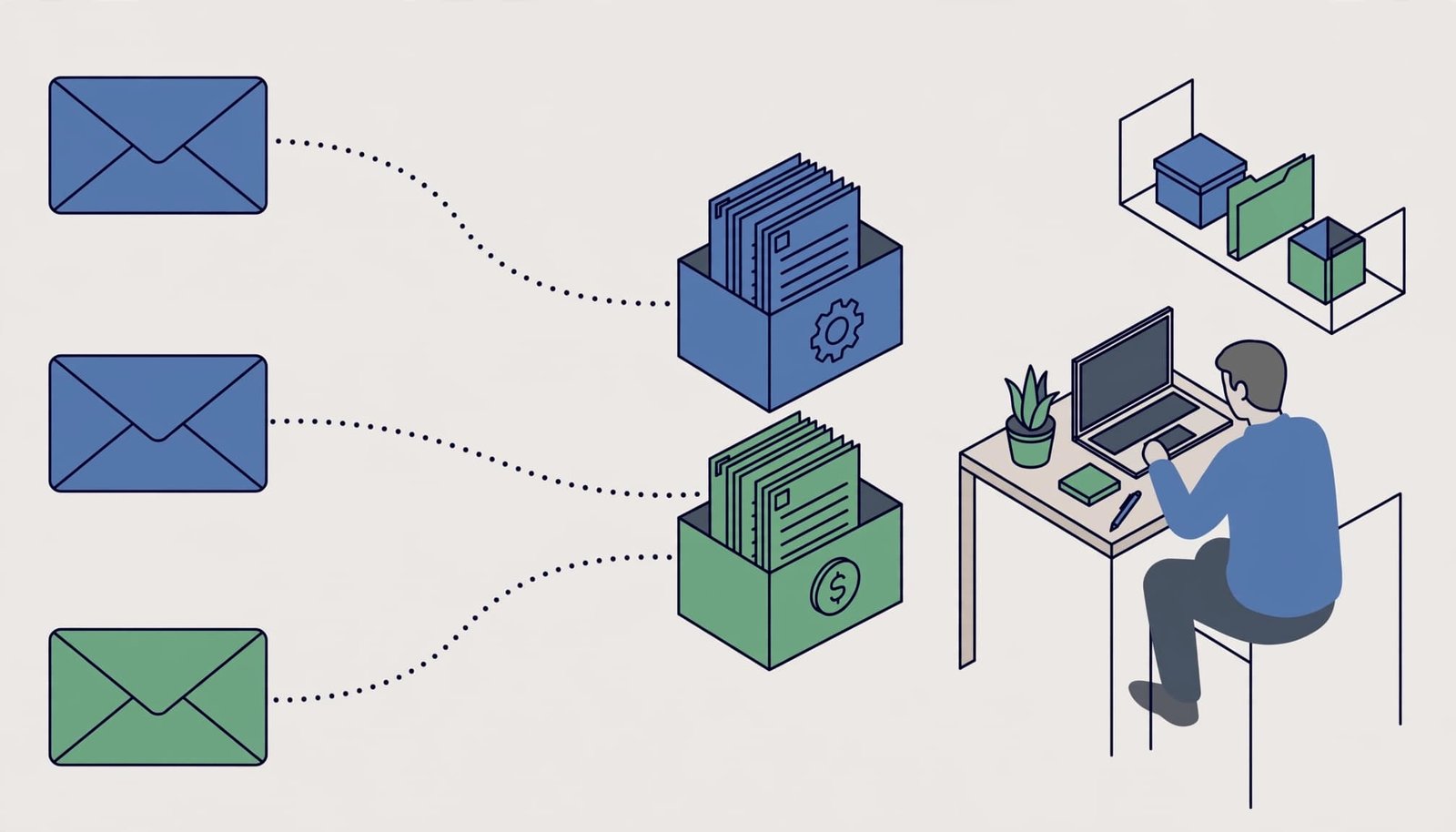
For a SaaS workflow, billing questions can enter a Billing queue, while login failures and product errors enter Product Support. A general support queue can catch requests that don’t fit either category.
A routing address can specify a user or queue as its case owner. However, assignment rules, Flow, and other automation can also affect ownership. Test the final owner after automation runs.
Keep support routing separate from sales territory management. Account coverage doesn’t automatically determine which support specialist should resolve an issue.
Add Customer Context Deliberately
An email address alone doesn’t reliably establish subscription tier, severity, or entitlement. Those decisions require dependable customer data.
If you add routing based on plan or product, define which record supplies that information and what happens when it’s missing. Send uncertain requests to a review queue rather than assigning them through a guessed match.
Similarly, setting a default priority on a routing address doesn’t diagnose the urgency of every incoming message.
A case appearing in the correct queue proves assignment, but it doesn’t prove an agent can see it or is available to respond.
Test queue membership and case access using an ordinary support agent account.
Configure Threading to Keep Replies Together
Use Lightning Threading
Recommended: Use Lightning threading rather than legacy Ref ID threading. Salesforce maintains Ref ID threading in maintenance-only mode.
Lightning threading uses email-header matching and tokens to associate replies with existing cases. Enable the subject token, body token, or both, alongside Use email headers for threading, where those settings are available.
The purpose is straightforward: a customer’s reply should add to the existing conversation instead of creating another case.
For testing, send an agent reply from the case’s email action. Then reply as the customer and inspect the original case. A successful inbound-only test doesn’t establish that the return path works.
Keep One Routing Address Per Issue
Salesforce warns that multiple Email-to-Case routing addresses on one message or thread can create duplicate cases.
A customer copying both your billing and technical support inboxes can therefore cause trouble if both addresses route into Salesforce.
Recommended: Keep one routing address on each customer conversation. Transfer ownership inside Salesforce when another team needs to handle the issue.
Also test replies with edited subjects and messages forwarded through your actual mail system. These paths can behave differently from a clean reply because the message’s threading information may change.
Plan for Message Limits and Failure Handling
Salesforce documents a combined daily email-services limit, including Email-to-Case, of 1,000 messages per user license, capped at 1,000,000 messages daily.
That shared processing limit isn’t a promise that every message becomes a new case. Replies can belong to existing cases.
An inbound email must be under 25 MB. Salesforce also limits a case to 250 inbound emails per rolling 24 hours.
These limits matter when customers send diagnostic files or automated systems repeatedly email the same incident. Recommend an approved file-sharing channel for large logs rather than encouraging oversized attachments.
The daily processing-limit options produce different outcomes.
| Option | What happens |
|---|---|
| Bounce | Salesforce rejects the message. |
| Discard | Salesforce deletes it without notifying the sender. |
| Requeue | Salesforce schedules another processing attempt within the next 24 hours. |
If a requeued message remains unprocessed, Salesforce returns it with a rejection notice.
Recommended: Choose the behavior deliberately and assign responsibility for failures. Discard carries a clear operational risk because the sender receives no notification.
Test the Complete Support Workflow Before Launch
Use controlled mailboxes and distinguishable test subjects. Where available, test outside normal production workflows and keep customer data out of unnecessary test copies.
Record the expected case owner, priority, relationships, and reply behavior before sending messages. Then compare actual records with those expectations.
- Test intake. Send a new message through the public support inbox. Confirm case creation, the final owner, routing defaults, and the email’s visibility on the case.
- Test the conversation. Reply from Salesforce, then respond from the customer mailbox. Confirm the response reaches the original case without creating a duplicate.
- Test exceptions. Exercise sender restrictions, missing customer context, and fallback ownership. Also send a controlled message involving multiple routing addresses to understand duplicate behavior.
- Test real access. Repeat the workflow as a support agent. Compare case visibility and report results with an administrator’s view.
Inspect Contact and Account relationships separately instead of assuming a sender’s domain identifies the correct customer.
Also distinguish timeline visibility from reporting. Inspect the underlying records and report detail rows rather than treating an email displayed on a case as proof that every report includes it.
After launch, assign someone to review failed intake, duplicate cases, and aging fallback-queue requests.
Frequently Asked Questions
Does Email-to-Case replace the support mailbox?
No. With the on-demand approach, customers continue using your support address. The mail system forwards their messages to Salesforce’s generated service address.
Can one team use several routing addresses?
Yes. Separate addresses can support different workflows. However, keep one routing address per issue or conversation to reduce duplicate-case risk.
Does creating a case automatically start an SLA?
Email intake alone doesn’t establish an SLA policy. Response targets, escalation behavior, and any entitlement or milestone configuration require separate setup.
Can CC or BCC messages create cases?
Yes. Salesforce can create a case when a routing address appears in the message’s To, CC, or BCC fields.
Build a Support Channel You Can Operate
A reliable Salesforce Email-to-Case setup connects intake, ownership, and replies into one working support process. The strongest starting point is a verified address with tested forwarding and a monitored fallback queue.
Add routing complexity only when customer data supports it. Before launch, prove that an ordinary agent can receive, answer, and report on the request, because case creation is only the first step.