
An API integration shouldn’t require passwords or tokens inside your Salesforce code. Salesforce Named Credentials separate the destination, authentication, and permission to connect, so you can manage each without rewriting your integration.
The safest setup combines managed credentials with least privilege: grant only the external access and Salesforce data access the integration needs. That matters whether you’re connecting a billing service, syncing customer records, or building an automation.
Start by separating the endpoint configuration from the authentication settings.
Key Takeaways
- A Named Credential defines the endpoint; an External Credential defines authentication.
- Principals identify which external credentials Salesforce uses, while permission sets control who can use them.
- Store secrets in credential configuration, never in Apex, Flow inputs, or deployment files.
- Test with the actual execution user, including denied-access scenarios. An administrator’s successful callout doesn’t prove the setup works for everyone.
How Salesforce Named Credentials Fit Together
Named Credentials define the destination
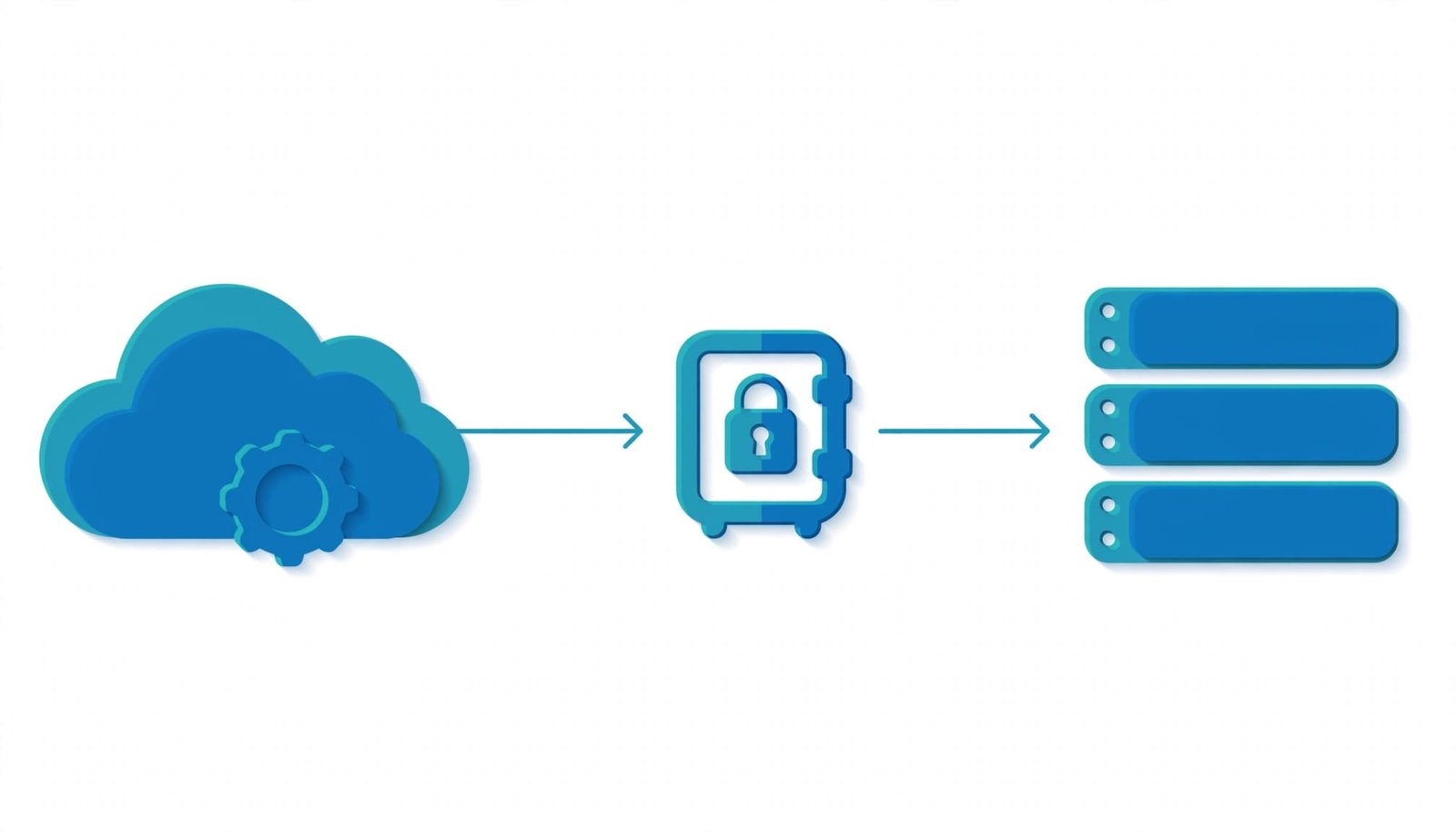
A Named Credential holds the external service’s endpoint and connects it to an External Credential. Your integration references its developer name rather than embedding a destination URL or secret.
This separation makes environment changes easier. For example, sandbox and production can use the same developer name with different endpoints.
External Credentials define authentication
An External Credential describes how Salesforce authenticates to the service. Its principals associate authentication details with the users permitted to make callouts.
Salesforce stores encrypted authentication tokens in User External Credential records. Those records are separate from ordinary customer data.
Treat these as distinct decisions: where the request goes, how it authenticates, and who can send it. Granting endpoint access doesn’t automatically grant access to Salesforce records or fields.
Choose the Authentication Method First
The external API determines the authentication protocol. Choose the supported method before creating credential records, because required fields and authorization steps differ.
These common options have different setup requirements:
| Authentication method | Suitable use | Important configuration |
|---|---|---|
| OAuth 2.0 | APIs using access tokens | OAuth flow, identity-provider settings, and scopes |
| Custom | API keys or custom authentication headers | Principal parameters and header formulas |
| AWS Signature Version 4 | Supported AWS HTTP services | AWS signing configuration and credentials |
| JWT | APIs accepting signed JSON Web Tokens | Signing certificate and required claims |
For AWS integrations, Salesforce’s AWS Signature v4 configuration signs outbound requests using that protocol.
Within OAuth, browser authorization and machine-to-machine flows require different settings. Don’t assume every OAuth service needs the same identity-provider configuration.
Also choose the smallest external scope that supports the task. A reporting integration rarely needs permission to delete external records.
Create the External Credential and Principal
Configure the authentication settings
In Salesforce Setup, search for Named Credentials, then open the External Credentials tab and select New.
Enter a descriptive label and developer name. Select the authentication protocol, then complete its protocol-specific settings.
For OAuth, configure the identity-provider component required by the selected flow, such as an External Auth Identity Provider. Client identifiers, secrets, scopes, and authorization behavior depend on that flow.
Salesforce’s External Credential setup instructions describe the authentication-dependent fields. A Custom credential instead relies on authentication parameters and headers rather than an OAuth authorization flow.
Choose the principal identity
Save the External Credential, then add a principal in its Principals section.
A Named Principal uses shared external authentication for permitted Salesforce users. It’s appropriate when an integration acts through a dedicated service identity.
A Per User Principal, where supported, uses each user’s external identity. This suits workflows where the external service must recognize the individual making the request.
Support depends on the protocol. Custom authentication supports Named Principal, not per-user identity.
Use a dedicated external account for shared integrations. Giving it an employee’s broad personal access makes ownership and offboarding harder.
Configure API Keys Without Hard-Coding Secrets
For an API-key integration, select Custom authentication and create a Named Principal. Add an authentication parameter for the secret, then reference that parameter in a custom header.
For example, an External Credential named Billing_Auth could contain a parameter named ApiKey. A header formula can reference it as {!$Credential.Billing_Auth.ApiKey}.
The actual header name depends on the API. Some services expect X-API-Key; others require an Authorization header with a prefix.
Salesforce supports API keys through custom headers. Headers can belong to a Named Credential or an External Credential, depending on where that configuration should apply.
Put the secret in the principal’s authentication parameter. Put only its reference in the header formula and integration code.
Enable formula evaluation for HTTP headers when that option applies to your configuration. If you construct an Authorization header yourself, avoid a conflicting automatically generated header.
Never place a real key in a formula literal, debugging statement, Flow variable default, or source-control file.
Create the Named Credential Endpoint
Return to the Named Credentials tab and select New.
Enter a label and developer name, then supply the external service’s HTTPS base URL. Associate the External Credential created earlier and enable the credential for callouts.
The developer name matters because Apex references it directly. Choose a stable name that describes the service, such as GitHub_API, rather than a temporary project name.
Keep resource paths separate from the base endpoint where practical. This lets one Named Credential support multiple resources on the same service.
Salesforce’s Named Credential configuration supports using the same credential name across orgs with different endpoint values.
Custom headers and callout options depend on authentication. Leave unrelated options disabled rather than enabling them as a troubleshooting shortcut.
Grant Principal Access Through Permission Sets
Give access to the execution user
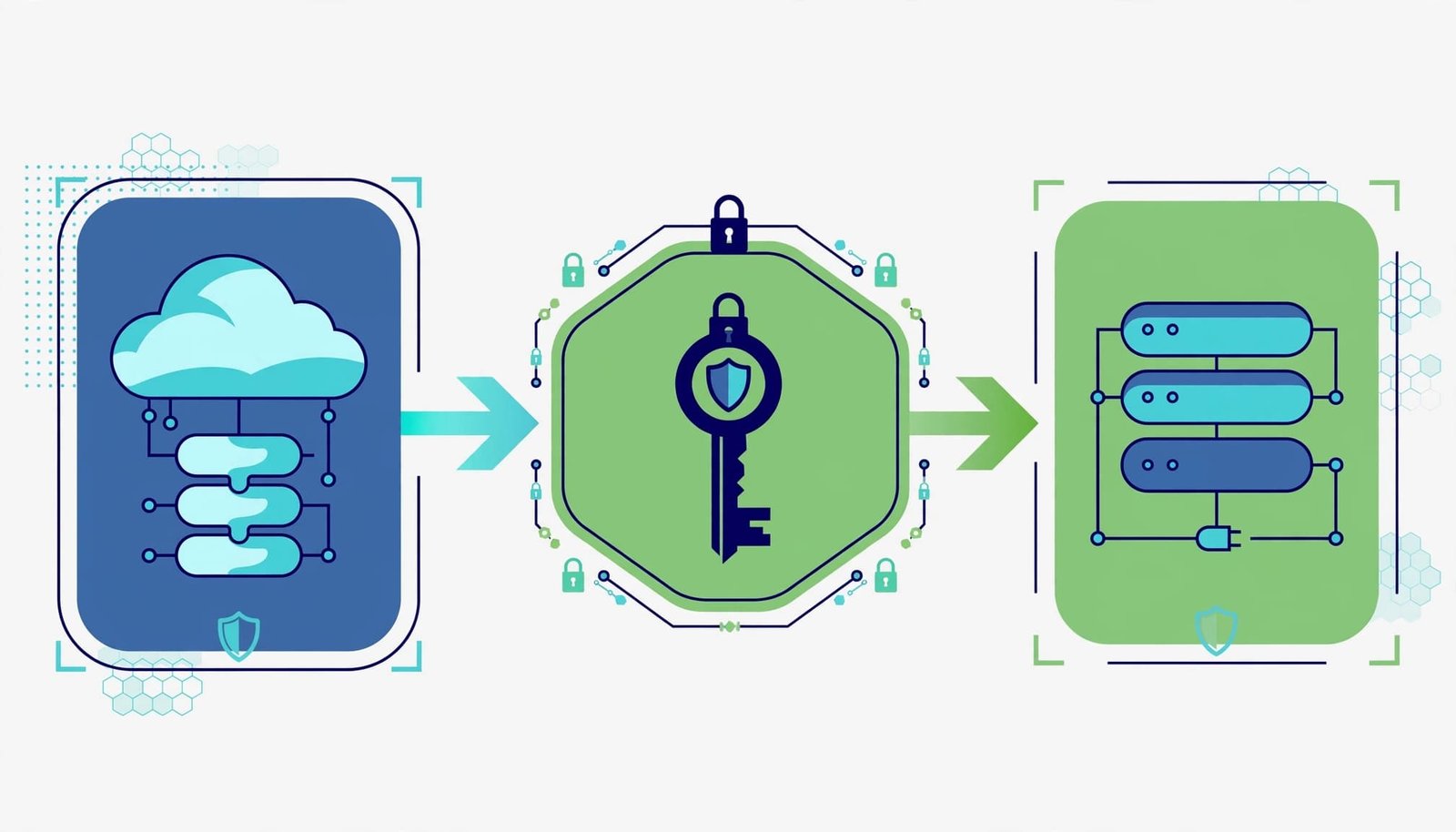
In Setup, open Permission Sets and create or select a focused set. Open External Credential Principal Access, select Edit, enable the required principal, and save.
Assign the permission set to the user who executes the callout. For shared integrations, that may be a dedicated integration user. For per-user authentication, each permitted user also needs their own external authentication.
Salesforce’s credential permission concepts distinguish principal access from permissions involving User External Credential records. Requirements can differ by authentication protocol and execution context.
Keep integration grants narrow
Use a reusable permission set named for the responsibility, such as Integration - Billing Sync. Add it to a permission set group when that responsibility belongs to a repeatable job function.
Keep credential administration separate from routine callout access. Users shouldn’t need administrator privileges merely to run an approved integration.
Principal access also doesn’t grant Salesforce object permissions, field-level security, or record visibility. Configure those separately, and account for the execution mode of Apex or Flow.
Review all assigned sets and groups because overlapping grants can preserve access after one assignment is removed.
Make and Test a Practical Apex Callout
Reference the credential by developer name
For a GitHub OAuth integration, configure GitHub_API with GitHub’s API base endpoint and the appropriate OAuth External Credential.
The following Apex request uses GitHub’s authenticated-user resource:
HttpRequest request = new HttpRequest();
request.setEndpoint('callout:GitHub_API/user');
request.setMethod('GET');
HttpResponse response = new Http().send(request);
The callout: prefix tells Salesforce to resolve the Named Credential. /user is the resource path appended to its endpoint.
Authentication comes from the associated credential configuration. Avoid adding a token directly in Apex.
For a no-code implementation, the same credential model can support Salesforce Flow HTTP Callout. The Flow still needs a correctly configured endpoint and authentication setup.
Test allowed and denied access
First, run a read-only request with the intended non-admin user. Then test a user without the principal grant.
For asynchronous Apex or Flow, the effective execution context can differ from the person who initiated the work. Test the context your automation actually uses.
An HTTP 401 usually points to missing or rejected authentication; 403 commonly indicates insufficient authorization. However, external APIs can define their own response behavior.
A Salesforce-side failure before any HTTP response may involve credential access or configuration. Diagnose that separately from the external service’s response.
Protect Data During Deployment and Maintenance
Deploy credential definitions through your normal release process, but treat secrets and authorization as separate environment-specific setup. Metadata deployment doesn’t carry every token or authentication value.
Use separate external identities or credentials for sandbox and production. This reduces the chance that a test automation changes live billing or customer data.
Also review the request payload. A valid credential doesn’t justify sending internal margin, commission, or personal data that the external workflow doesn’t need.
Where Apex reads Salesforce data, apply appropriate sharing and object and field permission enforcement. Named Credentials handle outbound authentication, not every data-access decision in your code.
Document the credential’s owner, purpose, principal assignments, and rotation procedure. Review access after role changes, integration changes, or external scope changes. Avoid logging authorization headers or sensitive response bodies.
Frequently Asked Questions
Do Named Credentials require Remote Site Settings?
A callout that uses a Named Credential doesn’t require a separate Remote Site Settings entry for that endpoint. Callouts that bypass the Named Credential have their own endpoint authorization requirements.
Does a shared principal give every user API access?
No. A Named Principal shares external authentication among users granted access to that principal. It doesn’t make the external credential available to every Salesforce user.
However, the external account’s permissions still matter. A narrow Salesforce grant can expose broad external capabilities if the shared account has excessive privileges.
Build the Integration Around Least Privilege
Salesforce Named Credentials keep endpoint and authentication settings out of integration code. Their security value depends on narrow principal access, appropriate external permissions, and careful Salesforce data handling.
Start with a read-only callout, test the intended execution user, and prove denied access works. Keep secrets out of code and credential administration separate from everyday integration use.