
Salesforce Omni-Channel routes support work to available agents based on routing rules and capacity. For a small SaaS team, start with queue-based case routing, then add skills or flow-driven decisions when your support process needs them.
A case reaching Salesforce doesn’t prove anyone can handle it. Reliable routing connects intake, queue ownership, agent availability, and record access. Build that path first, then test it with an ordinary support account before sending live traffic through it.
Key Takeaways
- Start with Cases and a small number of queues before adding more channels.
- Connect each queue to a routing configuration and eligible agents.
- Match work-item capacity requirements to the capacity available to agents.
- Test intake, ownership, agent access, acceptance, and replies as separate parts of the workflow.
Plan Your Salesforce Omni-Channel Workflow
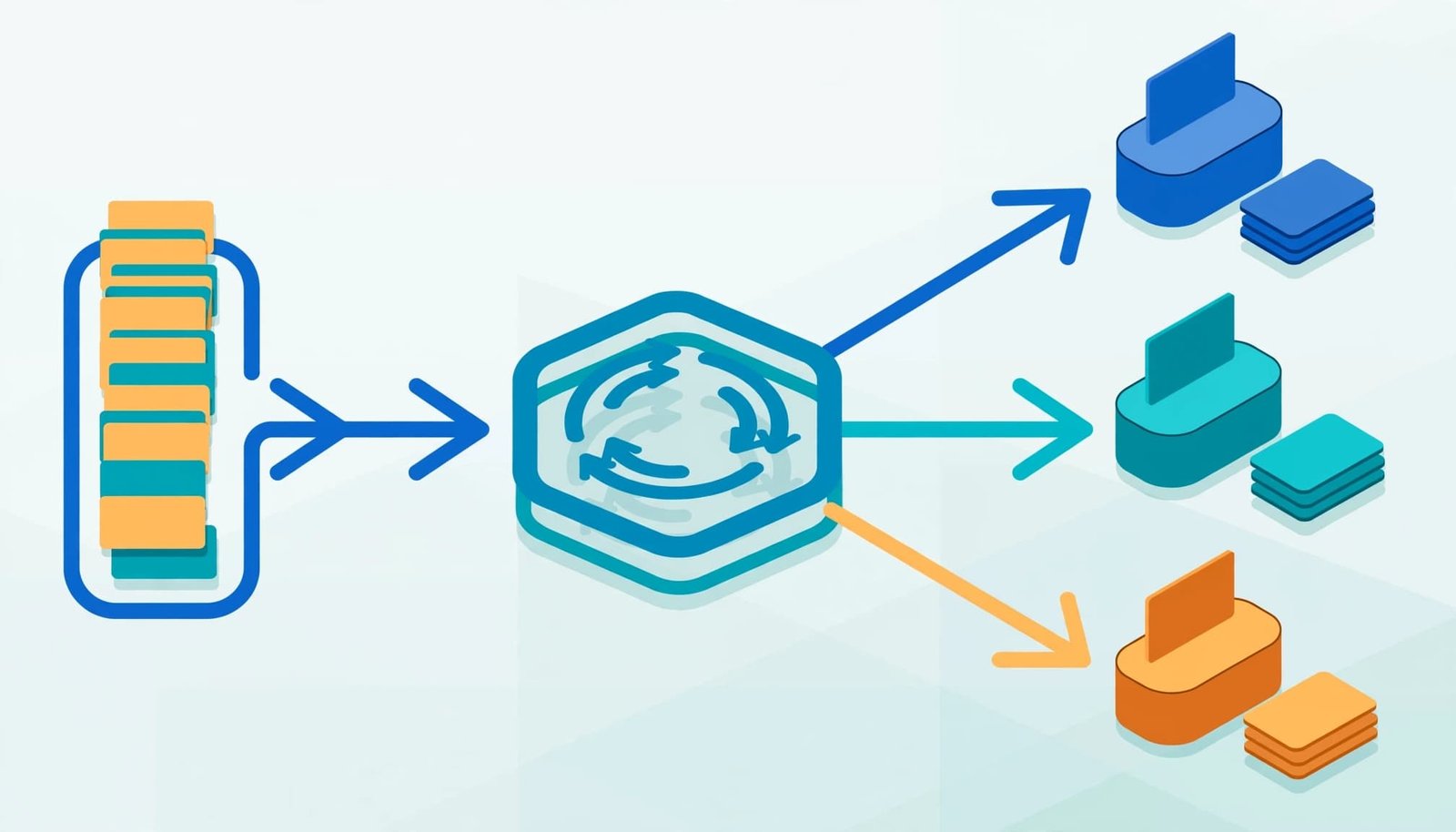
Separate intake from agent routing
Email-to-Case creates cases from incoming messages. Omni-Channel distributes eligible work after it enters the support workflow. Assignment rules, escalation behavior, and permissions remain separate configurations.
For a small team, On-Demand Email-to-Case is a practical intake option because it processes forwarded messages without an installed email agent. Customers continue using your public support address.
However, establish which automation controls case ownership. A routing-address default, assignment rule, and Flow can all affect where a case lands. Document their intended order before adding agent routing.
Choose a simple routing model
Begin with queue-based routing when Billing and Product Support need different agent pools. Queue membership establishes who can receive that queue’s work.
Salesforce’s routing model options include Least Active and Most Available. Least Active favors agents with less assigned work; Most Available favors agents with more spare capacity.
Use skills when eligibility depends on expertise or language. Use an Omni-Channel flow when routing needs branching logic or dynamic destinations.
Enable Omni-Channel and Define Case Routing
Use a sandbox for the initial build. Keep an administrator account for configuration and ordinary support-user accounts for testing.
This walkthrough uses Cases in Lightning Experience. Messaging and voice require their own channel-specific setup.
Enable routing and create a service channel
In Setup, enter Omni-Channel Settings in Quick Find. Open the settings, select Enable Omni-Channel, and save.
Next, search for Service Channels and create a channel for the Case object. Give it a recognizable name, such as Case Support.
A service channel identifies the type of Salesforce record Omni-Channel can route. It doesn’t create incoming cases, classify issues, or define agent availability. Those responsibilities belong to other parts of the setup.
Create a routing configuration
In Setup, open Routing Configurations and create a configuration for the pilot queue.
Set the routing priority, routing model, and work-item capacity requirement. Lower routing-priority numbers receive higher priority. This setting is separate from the Case Priority field.
Salesforce’s routing configuration settings define these controls. Use the same model across initial queues unless there’s a clear operational reason to differ.
Don’t assume marking a case High automatically changes its Omni-Channel routing priority. Connect that business requirement through routing logic.
Connect Support Queues to Routing
Create queues with eligible members
In Setup, search for Queues and create your initial support queue. Add Case as a supported object, then add the users who should receive that work.
Under Configuration with Omni-Channel Routing, select the routing configuration you created.
Use one object type per Omni-Channel queue. This keeps the queue’s purpose clear and follows Salesforce’s troubleshooting guidance.
Salesforce’s queue-based routing walkthrough explains how queues, routing priority, and representatives fit together. Begin with Product Support and a monitored fallback queue. Add Billing only when it needs different ownership or staffing.
Control ownership before routing begins
Make sure new cases reach the intended queue after intake automation finishes. Otherwise, a correctly configured queue can remain empty while requests accumulate elsewhere.
For subscription-based routing, define which Account or subscription field supplies the customer’s plan. An email domain alone doesn’t establish entitlement or severity.
Send incomplete or ambiguous requests to the fallback queue. Assign a named operational owner to review it during support hours.
Also test existing assignment rules and Flows. An automation that changes ownership after intake can move a case away from the queue you expected Omni-Channel to use.
Set Agent Presence, Capacity, and Access

Give agents the right presence statuses
Presence statuses tell Omni-Channel whether an agent is available for particular service channels.
In Setup, open Presence Statuses. Create an available status associated with your Case service channel. Use an unavailable status for breaks or other periods when agents shouldn’t receive work.
Grant access to the required statuses through profiles or permission sets. Then test the status menu as a support user.
Queue membership and presence access solve different problems. An agent can belong to the correct queue but still lack an available status for its service channel.
Match capacity to work-item size
Open Presence Configurations and set agent capacity. Salesforce creates a Default Presence Configuration when Omni-Channel is enabled, and you can create configurations for different agent groups.
Assign the pilot agents to the intended configuration. Salesforce’s presence configuration guidance describes this setup.
For a controlled pilot, use 10 capacity units per agent and 2 units per case. Five simultaneous cases would consume that capacity.
These are starting settings, not a staffing recommendation. Adjust them based on the work involved.
Most importantly, a work item’s capacity requirement must fit within agent capacity. If a case requires more units than an agent has in total, that agent can’t receive it.
Add Omni-Channel to the Support Console
In Setup, open App Manager. Find the Lightning Service Console app your agents use, select Edit, and open its utility-item settings.
Add Omni-Channel to the utility bar, then save the app. Agents need access to that app as well as the underlying Case records.
Sign in as a pilot agent, open the console, and select the available Case status. Place an eligible test case in the configured queue.
Confirm that the agent receives the work offer and can accept it. Then open the case and try the actions required for support, including editing fields and sending a reply.
Receiving work doesn’t prove full access. Object permissions, field-level security, and record sharing still determine what an agent can see or change.
Avoid solving access problems by granting broad administrator permissions. Give agents the permissions their support responsibilities require.
Add Skills or Flow-Based Routing When Needed
Keep queue routing until it can no longer express your support requirements clearly. Too many overlapping specialist queues can become difficult to maintain.
Skills-based routing is useful when requests require a product specialty or language. It needs defined skills, agent skill assignments, and rules that identify the required skills.
To enable that approach, select Enable Skills-Based and Direct-to-Agent Routing in Omni-Channel settings. On the relevant routing configuration, select Use with Skills-Based Routing Rules.
Those switches don’t complete the skills model. Required skills must match the people eligible to receive the work.
For branching logic, an Omni-Channel flow uses the Route Work element to route work to a destination. Keep that logic separate from email forwarding and case creation.
For either approach, define what happens when customer data is missing or no suitable agent is available.
Test Routing Before Launch
Run tests through the actual intake path, not only by creating cases manually. For email support, send a message to the public mailbox and inspect the resulting case.
Use this test matrix to isolate failures.
| Test | Expected result | Likely area to inspect |
|---|---|---|
| Eligible agent is available | Work reaches that agent | Queue, channel, routing configuration |
| All agents are unavailable | Work remains waiting | Presence and queue ownership |
| Agent reaches capacity | No additional work exceeds capacity | Presence capacity and item size |
| Customer context is missing | Request reaches fallback review | Assignment rules or Flow |
| Agent accepts the case | Required support actions work | Permissions and sharing |
Then test declines, work completion, and agent availability changes. Observe whether capacity changes as intended before increasing traffic.
A case in the correct queue proves ownership. An accepted case that an ordinary agent can answer proves the working handoff.
For Email-to-Case, reply from the case’s email action. Reply again as the customer and confirm that the conversation stays attached to the original case.
Also test messages copied to multiple support addresses. Multiple Email-to-Case routing addresses on one conversation can create duplicate cases.
After launch, track waiting work, aging fallback cases, and routing failures. Give someone responsibility for reviewing exceptions rather than relying on agents to notice them.
Frequently Asked Questions
Does Email-to-Case automatically configure Omni-Channel?
Email-to-Case handles email intake and case creation. Omni-Channel requires separate service channels, routing configurations, queues, presence settings, and agent access.
A successful inbound email test proves intake works. It doesn’t prove an available agent will receive the resulting case.
Does Omni-Channel automatically enforce support SLAs?
Omni-Channel distributes work, but response commitments require separate configuration. Escalation rules, entitlements, and milestones aren’t established merely by enabling routing.
For SaaS support, distinguish routing priority from contractual response targets. A high-priority queue still needs an escalation process when nobody accepts the work.
Build a Routing Process Your Team Can Operate
A dependable Salesforce Omni-Channel setup connects queue ownership with eligible agents, usable capacity, and appropriate access. Start with one service channel and a small queue structure before adding specialist routing.
Make the complete handoff your launch requirement. An ordinary agent should receive, accept, and answer a request through the same path your customers will use.