Revenue data rarely disappears because a CSV file failed. It disappears when a deal loses its company, an opportunity loses its source, or a historical activity lands where nobody can report on it.
A HubSpot to Salesforce migration needs more than a record export. You need a controlled plan for relationships, attribution, lifecycle history, and the brief period when both systems remain active. That work protects the reports your team uses to make decisions.
Start with a migration plan that defines what Salesforce must prove on day one.
Key Takeaways
- Define the operating problem Salesforce must solve, then use clear acceptance criteria and revenue metrics to guide the migration.
- Clean HubSpot while it remains the source of truth, and map fields, lifecycle stages, attribution, and relationships according to approved business definitions.
- Preserve relationship context with External IDs, parent-before-child loading, and a Salesforce model for accounts, opportunities, contacts, products, and activities.
- Test representative data in a sandbox, run controlled delta migrations, reconcile revenue and attribution, and keep a documented rollback or contingency plan.
- Rebuild revenue-critical automation in stages and support user adoption with role-based training, clear ownership, and post-launch data quality reviews.
Confirm that Salesforce solves a real operating problem
A CRM migration should respond to a concrete operating problem, not platform prestige. Salesforce Sales Cloud is a serious investment in configuration, administration, and training. Move because your current CRM blocks reliable operations, not because a larger platform sounds like the next milestone.
Common triggers include complex account hierarchies, several product lines, territory rules, stricter permissions, partner sales, or reporting that requires more than standard funnel views. Salesforce also supports custom objects and tailored automation when your sales process no longer fits a single, simple pipeline.
Look for pain in the revenue process
Review the last three months of operating friction. If reps maintain shadow spreadsheets, managers can’t explain pipeline changes, or marketing and sales dispute lead ownership, the issue may be process design rather than software.
However, a move makes sense when those problems persist after you have cleaned up lifecycle stages, ownership rules, and workflows in HubSpot. Salesforce should support a defined sales motion. It can’t fix unclear definitions of a qualified lead or closed revenue.
Write down the business questions your new CRM must answer. Examples include:
- Which campaigns sourced closed-won revenue by segment?
- Which parent account owns each subsidiary opportunity?
- How long does a deal spend with each team?
- Which renewal risks have open support cases?
- Which routing rules protect the lead-response SLA?
Those questions become acceptance criteria for the CRM migration.
Set revenue preservation rules before exporting records
Treat revenue reporting controls as requirements for this HubSpot to Salesforce migration and part of data governance, with clear inputs, formulas, and owners. Before anyone moves data, name the metrics that must match between HubSpot and Salesforce.
At a minimum, capture total closed-won amount, open pipeline by stage, weighted pipeline, deal count, average sales cycle, and revenue by owner. Add source, campaign, product, region, or subscription fields if your team relies on them.
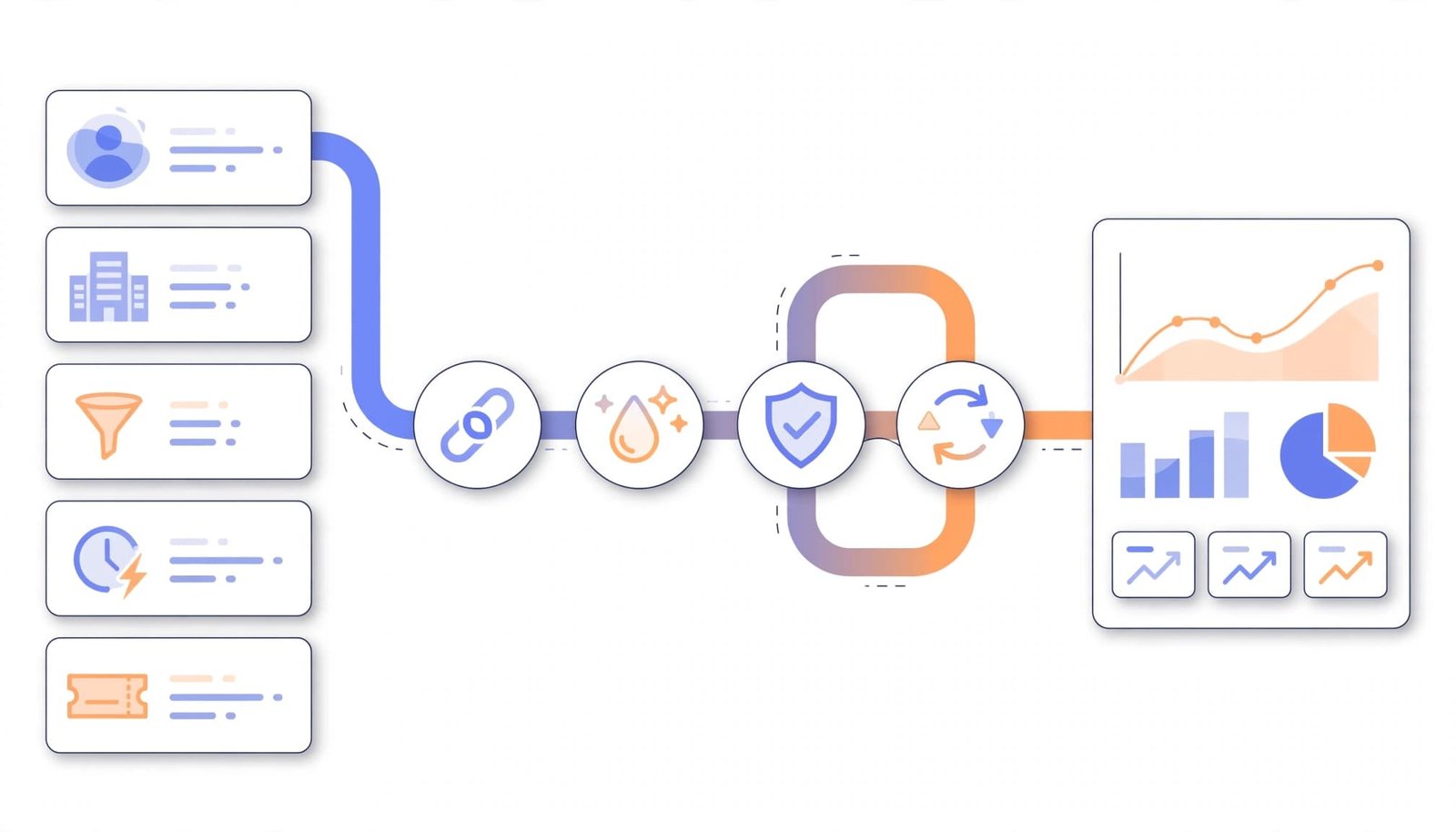
Create a read-only baseline workbook before extraction. For each metric, record the HubSpot report filters, date range, currency treatment, and timestamp. If a report excludes deleted records or uses custom properties, document that too.
A revenue total can match while attribution is broken. Reconcile amounts by source, campaign, owner, stage, and close month, not only one grand total.
Also decide which records are historical data and which need to stay operational. A five-year-old closed-lost deal may belong in Salesforce for reporting, while old marketing email opens may belong in an archive instead.
Clean the database while the source is still trusted
Data cleansing is easiest while HubSpot remains the source of truth. Resolve data quality issues there whenever possible, before the final cutover.
Create an early CSV export and profile the database at the property level, including custom properties. Count blank values, invalid picklist values, duplicate records, duplicate domains, repeated emails, orphaned deals, and records with no owner. Segment results by object, because a healthy contact table can hide a poor-quality deal table.
HubSpot’s record export documentation confirms that exports include current property values and associations. That makes an early file useful for both field discovery and relationship checks.
Merge with rules, not guesswork
For people, email is often the strongest match key, but shared inboxes and changed work addresses need review. For companies, use a normalized website domain where possible, then apply rules for subsidiaries, franchises, and strategic accounts with several domains.
Don’t automatically merge businesses based only on similar names. “Acme Holdings” and “Acme Software” may belong to separate customers. Send uncertain matches to a business owner for review instead of merging them automatically.
Normalize values before mapping. Standardize countries, states, phone formats, industry labels, revenue ranges, and lifecycle terms. Otherwise, Salesforce reports will split a single category across variants such as “Mid Market,” “mid-market,” and “MM.”
Build a field map that explains business meaning
A field map is not a column-to-column exercise. It makes data mapping a business-meaning exercise. The map states what a value means, who owns it, what data type it needs, and how Salesforce handles it.
For every field, capture the source object and property, destination object and API name, data type, allowed values, transformation rule, default value, and owner. Add a decision column for “migrate,” “derive,” “archive,” or “retire.”
Map lifecycle stages, lead status, opportunity or deal stages, amount, close date, and owner according to approved business definitions. Apply the same rule to source, campaign, product, and other attribution fields.
The initial data mapping for object translation often looks like this:
| HubSpot record | Common Salesforce destination | Mapping decision |
|---|---|---|
| Contact | Lead or Contact | Split based on qualification and account relationship rules |
| Company | Account | Define parent-child account hierarchy rules first |
| Deal | Opportunity | Match pipeline, stage, amount, close date, and owner |
| Ticket | Case | Import only support history that remains useful |
| Product line item | Opportunity Product | Match products and price books before loading |
The table is a starting point, not a universal template. Lead versus Contact, Account hierarchy, and Opportunity decisions depend on approved qualification, relationship, and pipeline rules, not universal one-to-one conversions.
Every unmappable value needs a documented destination, an archive decision, or an approved custom field. Never delete it silently.
Preserve IDs and create durable matching keys
Add a custom External ID field for each migrated Salesforce object, such as HubSpot_Contact_ID__c or HubSpot_Deal_ID__c. These API names are implementation examples, not standard Salesforce fields. Confirm that each field exists in the target Salesforce org, or create it before loading the data.
Keep the original HubSpot record ID in that field even after the project ends. Source IDs support repeatable relationship loads and make safe retries easier.
Salesforce supports related record imports with External IDs. This lets a child file point to a parent with a stable source key instead of a Salesforce record ID that didn’t exist when you exported data.
An upsert can update an existing imported record rather than create a second record after a partial load.

Map relationships before loading a single deal
Revenue context lives in object relationships, not isolated records. A deal without its company, primary contact, owner, products, and campaign context may exist in Salesforce, but it won’t be useful.
Draw the target relationship model first. Decide whether each HubSpot Company becomes one Account, a parent Account with child Accounts, or a prospect record that should wait for sales qualification. Before loading deals, confirm the Account hierarchy, Opportunity-to-Account links, Contact Roles, primary contact logic, products, campaign attribution, and association labels.
Handle multi-company and multi-contact deals
HubSpot lets records carry multiple associations. Salesforce uses lookups, junction objects, Account Contact Relationships, and Opportunity Contact Roles. These relationship structures aren’t interchangeable.
Multiple companies and stakeholders may require different Salesforce relationship structures. Get the target model approved before importing any related records.
For a deal tied to several stakeholders, identify the primary buyer, champion, technical evaluator, and signer if those roles matter in reporting. Import each role, not only the contact link.
Likewise, don’t flatten a parent-child company structure into unrelated Accounts. If renewals roll up to a parent, create the account hierarchy before loading opportunities. Test historical revenue rollups at both the subsidiary and parent levels.
Association labels deserve attention too. They can distinguish a billing contact from a decision-maker or an implementation partner. Export them if they carry business meaning.
Preserve activities without creating a useless timeline
Teams often demand every note, email, call, meeting, and attachment. That can create a heavy import, hit platform limits, and still leave users with noisy timelines.
Set a retention policy for historical data by activity type and age. Retain sales notes, logged calls, meeting outcomes, key emails, support escalations, and attachments tied to active or recent revenue. Base each decision on operational, reporting, legal, and revenue needs. Archive low-value engagement data when it has no clear use. The goal is traceability, not an identical Salesforce timeline.
Keep original dates, authors, and source references
An imported activity is misleading if it appears to have happened on migration day. Where Salesforce permissions, supported objects, and the chosen import method allow it, retain original created dates, activity dates, owners, and authors. If a user, timestamp, or authorship detail can’t be reproduced, document that limitation.
For each imported record, retain its HubSpot ID and a proposed implementation field, Source_System__c, after confirming that the field exists or creating it in Salesforce. Add a link or reference to the archived export when attachments won’t move. Also document any associations or attachment references that the import method can’t reproduce.
HubSpot exports can include association data, but large data sets need planning. Verify HubSpot’s current official export documentation before relying on association-column limits or multi-file behavior. Check high-association records before assuming the export is complete.
Choose the right migration method for your scope
Choose the method based on scope, record volume, and risk in a HubSpot to Salesforce migration. A manual CSV migration can work for a small, clean database with standard objects. It gives you control, but a CRM migration also puts transformation logic, error handling, and relationship loading on your team.
The native integration between HubSpot and Salesforce is useful during a transition period. It can keep selected records synchronized while users move to Salesforce. The native integration isn’t a complete historical migration tool, and you shouldn’t expect it to recreate every custom object, past activity, attribution rule, or field transformation.
Use Data Loader
Salesforce Data Loader is the practical option for large standard-object loads, updates, deletes, exports, and upserts. Store every input file, field mapping, success file, and error file in version-controlled project storage.
Salesforce documents Data Loader batch configuration, including a maximum batch size of 200 records for SOAP API and 10,000 for Bulk API. Start conservatively in a sandbox, then adjust after reviewing failures and API use.
The browser-based import tools are better for simpler jobs. Salesforce’s import limits include a 100 MB file limit and a maximum of 90 fields per imported record. Complex migrations usually outgrow those constraints.
Bring in specialists when the model is complex
A consultant or migration partner makes sense for custom objects, CPQ, a large activity archive, regulated data, several integrations, or no internal Salesforce administrator. Enterprise scaling can also justify outside help when architecture, volume, or governance becomes difficult to manage internally.
Ask candidates for their mapping workbooks, reconciliation evidence, rollback or contingency procedures, and post-launch responsibilities. Professional engagements vary widely by scope.
They may include Salesforce architecture, API integration rebuilds, custom development, and change management. Treat quoted timelines and costs as project-specific, not universal guarantees.
Test the HubSpot to Salesforce migration in a sandbox
A sandbox is where your assumptions meet actual records. Use sandbox testing with a representative sample that includes missing data, duplicates, parent-child accounts, multiple contacts, closed-won opportunities, international values, attribution fields, and approved custom objects.
Salesforce recommends testing a migration in a sandbox before production work. Use it to test realistic record volumes, reports, lifecycle and deal-stage mappings, owner assignments, products, and opportunity totals. Check source and campaign attribution, account rollups, automation, permissions, and integrations as well.
Load parents before children
Use a documented sequence. Accounts, users, products, and price books need to exist before many dependent records. Then load leads and contacts, followed by opportunities, opportunity products, contact roles, cases, and activities.
Load order can vary with your data model, but the dependency rule stays the same: parent External IDs must exist before dependent records reference them.
After each sandbox load, inspect error files by category. A bad picklist value needs a mapping fix. A missing parent reference needs a load-order or relationship fix.
A validation-rule failure may require a temporary migration bypass with approval, logging, and audit controls. Don’t suppress every Salesforce validation rule to make the import pass. Disable only rules that conflict with incoming records, document the exception, and re-enable controls before production cutover.
Run delta migrations during the transition window
The first full load is a snapshot. A HubSpot to Salesforce migration still needs a controlled delta process to capture sales activity that continues afterward.
Set a freeze timestamp for the initial export. Define a saved view, API query, or integration filter for data synchronization. It should identify records created or updated after the timestamp. Run deltas in the sandbox first. Use sandbox testing to rehearse the exact production schedule.
Keep write ownership clear
Before the final window, document the system of record, freeze window, final delta owner, and go/no-go criteria. Assign business owners to approve each decision and coordinate the final checks.
During the final window, teams need a simple rule. Either HubSpot stays writable until a defined freeze, or Salesforce becomes the only system for new sales activity. Parallel editing creates conflicts that a later import can’t safely resolve.
Schedule cutover outside peak selling hours where possible. Coordinate with business owners before pausing workflows, lead routing, sequencing, and nonessential integrations. Keep those processes paused until the final delta and validation are complete.
Before switching, create a verified backup or define an approved read-only source reference. Keeping HubSpot read-only can preserve a fallback reference, but only when owners approve that operating decision. Don’t assume either platform can restore every change automatically. If totals, relationships, attribution, or critical integrations fail validation, stop the cutover and follow the documented rollback or contingency path.
Reconcile revenue data before calling the project complete
Successful load files prove that records arrived. They don’t prove revenue integrity or validate the approved data mapping.
Compare source and target records using unique HubSpot IDs. Validate record counts before and after loading, by object and owner. Compare closed-won totals, open pipeline, and weighted pipeline. Break opportunity totals down by stage, currency, close month, and owner. Check line items, source, campaign, and account hierarchy.

Validate reports with the people who use them
Assign signoff owners and materiality thresholds before review. Finance should approve booked and closed revenue. Sales leaders should approve pipeline, forecast categories, and rep ownership. Marketing needs to test source and campaign reporting. Customer success should inspect account history and open cases.
Preserve historical attribution when the source data and Salesforce model support it. Document every accepted loss, transformation, or reporting limitation.
Log every mismatch and investigate material defects. Common causes include deleted source records, changed currency logic, stage mappings, excluded pipelines, missing line items, and account relationships that did not load.
Production reliance should wait until approved reports reconcile or documented limitations are accepted. Tie unresolved material failures to the cutover rollback or contingency process. Record approved differences so nobody discovers them during a board meeting.
Rebuild automation with fewer surprises
Don’t recreate every HubSpot workflow on day one. Rebuild only the revenue-critical parts of workflow automation first: lead assignment, task creation, opportunity stage controls, alerts for stalled deals, and customer handoffs. Re-enable the rest in stages after data and ownership checks, rather than copying it blindly.
For each workflow, document the trigger, entry criteria, owner, action, exception path, and expected result. Test each one with a real-world sample in the sandbox before release, then control the rollout by stage.
Salesforce also changes the daily experience for reps and marketers. Improve user adoption with role-based training as part of change management, covering the records, fields, reports, opportunity stages, and account ownership each role uses. Define communications, ownership changes, and escalation paths. A two-hour generic platform tour won’t resolve unclear lifecycle definitions or poor data quality.
Set up a short period of post migration support after launch. Assign named owners to review error queues, duplicates, inactive owners, failed integrations, and adoption signals each day. Use those reviews to maintain data governance through clear definitions, permissions, quality checks, and change approvals. Small fixes made early protect data quality before bad habits spread.
Frequently Asked Questions
Can the native HubSpot-Salesforce integration complete a full historical migration?
No. The native integration can synchronize selected records during a transition, but it is not a complete historical migration tool for custom objects, past activities, attribution, or complex transformations.
How do you preserve relationships during the migration?
Create stable External ID fields that retain the original HubSpot record IDs, and load parent records before dependent records. Map account hierarchies, contact roles, products, campaign attribution, and association labels before importing opportunities.
What revenue data should be reconciled before cutover?
At a minimum, compare closed-won revenue, open and weighted pipeline, deal counts, sales cycle, and revenue by owner. Break those totals down by stage, currency, close month, source, campaign, product, and account hierarchy when those dimensions support reporting.
Should HubSpot remain available after the initial Salesforce load?
Use a defined freeze timestamp and a controlled delta process to capture records created or updated during the transition. HubSpot may remain read-only as a fallback reference when business owners approve that approach, but parallel editing should be avoided.
When should teams rebuild HubSpot workflows in Salesforce?
Start with revenue-critical automation such as lead assignment, stage controls, stalled-deal alerts, and customer handoffs. Test workflows in a sandbox and re-enable the remaining automation in stages after data, ownership, and integration checks are complete.
Final Thoughts
A successful HubSpot to Salesforce migration preserves the relationships behind every revenue number, not merely the records themselves. Clean the source, map lifecycle stages and deal fields, preserve relationships, use External IDs, and validate in a sandbox.
Treat this CRM migration as an operating change, not merely a platform switch. Reconcile revenue and attribution, document limitations, and keep a rollback plan before teams rely on the new system.
When Salesforce becomes the only place to create and update revenue records, your pipeline should be easier to explain than it was before the move.
