
Salesforce login flows can require an extra step or conditionally stop a login, but they don’t control individual CRM records. Record visibility depends on object permissions, sharing, and related security controls; field-level security protects sensitive fields.
That distinction matters when you’re protecting customer details, deal margins, or financial data. A policy acknowledgment can add a useful checkpoint, but it can’t hide an Opportunity that Salesforce already allows someone to read.
Start with the access model, then add a login flow where an entry requirement serves a clear purpose.
Key Takeaways
- Use login flows for post-authentication requirements, such as policy acknowledgment or an eligibility check.
- Protect records through Salesforce permissions and sharing, and protect fields through field-level security.
- Assign login flows by profile, then test with a real non-admin sign-in.
- Test rejected logins and denied record access separately, because they prove different controls.
What Salesforce Login Flows Can Control
Add a checkpoint after authentication
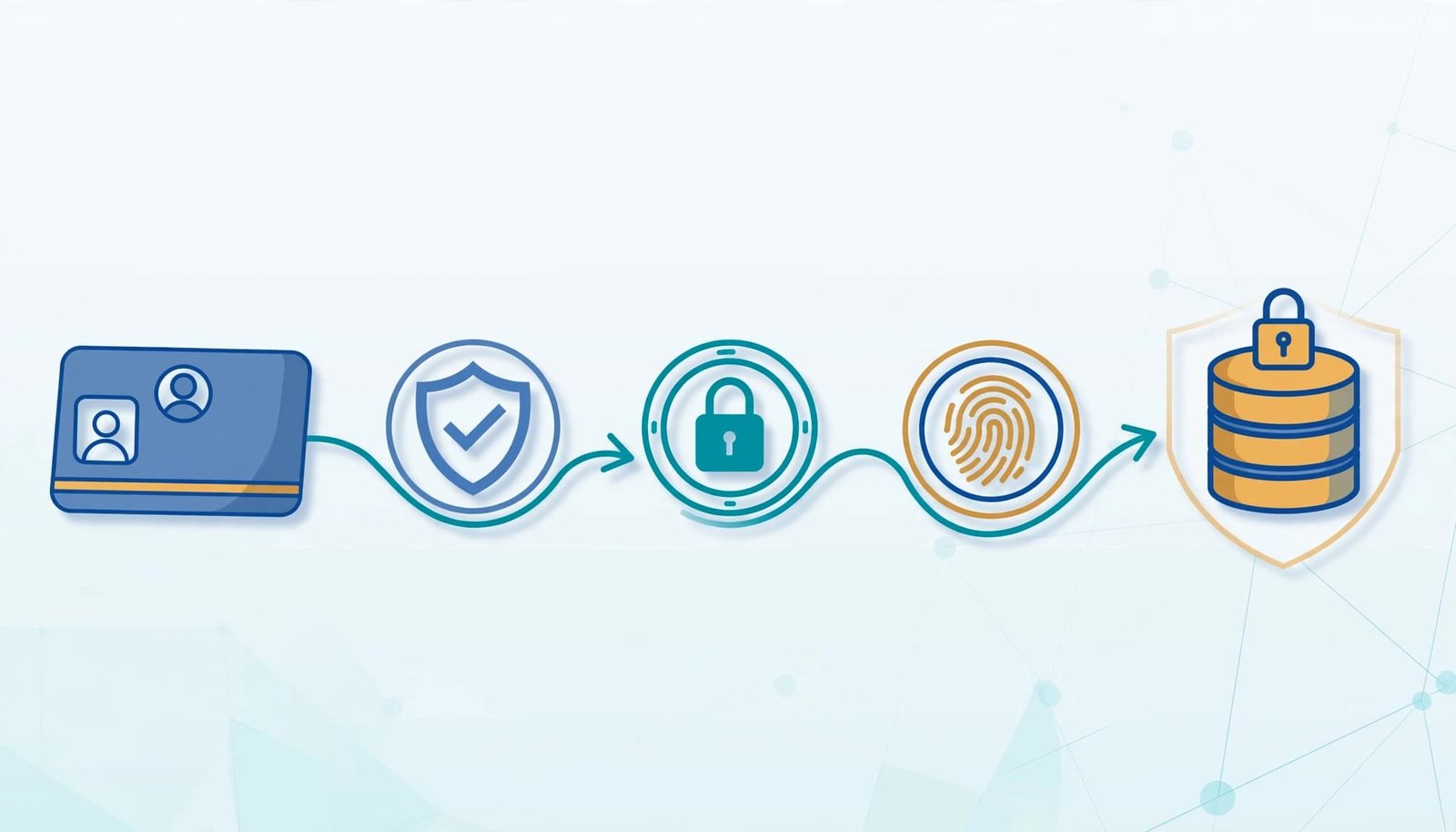
A login flow runs after Salesforce authenticates the user and before the user completes the login process. You can build one with a Flow Builder screen flow or Visualforce.
Useful requirements include accepting a confidentiality policy or satisfying an eligibility condition before entering Salesforce. However, an acknowledgment records agreement; it doesn’t prove that a device, location, or user is trustworthy.
Keep the requirement narrow. The flow should evaluate a defined condition and handle both successful and unsuccessful outcomes deliberately.
Keep record authorization separate
Completing a login flow doesn’t grant access to Accounts, Opportunities, or other records. Likewise, showing a warning doesn’t remove access that existing permissions already grant.
For sensitive CRM data, define two separate policies: who may enter Salesforce, and what each person may access afterward.
A user might satisfy the login requirement yet still lack access to confidential Opportunities. That is a valid result. The login flow handles entry, while Salesforce’s authorization controls determine the records and fields available inside.
Protect Sensitive Records at the Correct Layer
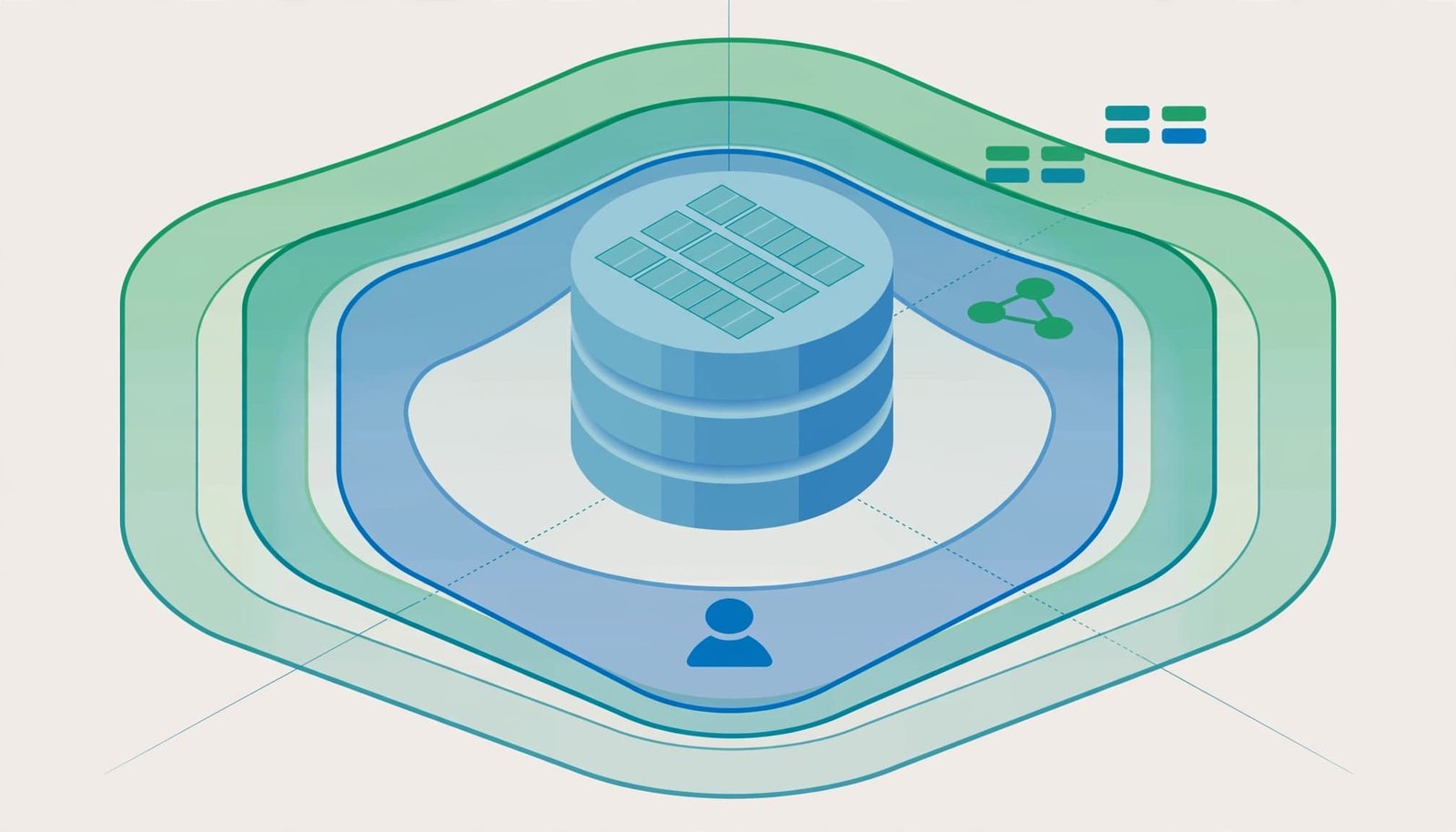
Salesforce’s data access security model separates object, field, and record access. Configure each layer rather than expecting one setting to cover everything.
Set object and field permissions
Object permissions determine whether someone can read, create, edit, or delete records of an object. Without Opportunity Read permission, sharing an Opportunity with that person doesn’t make it accessible.
Field-level security controls which fields users can view or edit. An account executive can edit an Opportunity while having read-only access to a margin field.
Use focused permission sets for repeatable responsibilities. Also review profiles and existing assignments, because overlapping grants can preserve access.
Removing a sensitive field from a page layout isn’t a security measure. Field-level security must protect it across relevant Salesforce surfaces.
Establish the record-sharing baseline
In Setup > Sharing Settings, review organization-wide defaults for the relevant object. These defaults establish the baseline for access to records users don’t own.
Then examine access through the role hierarchy, teams, territories, manual sharing, and sharing rules. A manager may already see a rep’s Opportunities through the hierarchy.
Sharing rules add access; they don’t remove it. Choose owner-based sharing when ownership identifies the records, or criteria-based sharing when field values define the selection.
Keep broad permissions, such as View All Data and Modify All Data, out of routine roles unless the responsibility requires them.
Build a Policy Acknowledgment Screen Flow
Create the screen and decision
Build in a sandbox first. Use a dedicated non-admin test profile, and keep a recovery administrator outside the login-flow assignment.
For a policy acknowledgment requirement:
- In Setup, open Flows, select New Flow, and choose Screen Flow.
- Add a Screen containing the policy notice and a required radio-button choice with Accept and Decline options.
- Add a Decision after the screen. Create an accepted outcome for the Accept value, and route every other outcome to rejection.
Use a clear flow name, such as Confidentiality_Login_Gate. A specific name makes the flow easier to identify during troubleshooting and future changes.
Make rejection enforceable
A rejection message alone doesn’t prevent entry. If a rejected branch simply completes normally, the user can finish the login flow.
For a Flow-based logout path, create a Boolean variable named LoginFlow_ForceLogout and mark it Available for output. On the rejected branch, use an Assignment to set it to True.
Keep the accepted branch separate and allow it to finish normally. Then save and activate the flow before assigning it.
For eligibility-based designs, evaluate a governed status rather than letting users declare themselves eligible. Missing eligibility data should follow the rejection path. Also review the execution context of any record queries, updates, or Apex actions so the gate doesn’t expose sensitive information itself.
Assign the Flow to the Intended Profile
Open Setup, enter Login Flows in Quick Find, and select New. Choose Flow as the type, enter a descriptive name, and select the activated flow.
Next, choose the relevant user license and profile. The license identifies the applicable user-license category, while the profile determines which users receive the login-flow assignment.
This assignment is profile-based. For a narrow pilot, use a dedicated test profile rather than assigning the flow to a broadly used production profile.
For a security gate, leave Render Flow in Lightning Runtime disabled. Salesforce warns that enabling it can allow access to Salesforce functionality before the flow finishes.
Salesforce’s custom login flow documentation covers supported behavior and links to configuration guidance.
After saving, perform a fresh sign-in with the test user. Editing a flow or assigning it doesn’t demonstrate what an already-open session will experience.
Test Login Gating and Record Access Separately
Exercise real sign-in paths
Use the test user’s actual credentials in a separate browser session. Administrator Login As doesn’t execute the login flow, so it can’t validate the gate.
Test acceptance, rejection, and incomplete input. For eligibility checks, include missing data and an ineligible status. Also test failures in any data lookup or action.
Exercise every supported sign-in route your team uses, including SSO, mobile access, and relevant connected applications. A successful browser test doesn’t establish how an integration accesses data.
Keep the recovery administrator available throughout the pilot. Expand the assignment only after the intended paths behave correctly.
Prove allowed and denied data access
After an accepted login, test the user’s effective permissions independently. Use representative non-admin users for each responsibility.
Test authorized records and records outside that user’s scope. Then test sensitive fields on accessible records, including whether each field is hidden, read-only, or editable.
Include record pages, list views, reports, search, exports, and API access where relevant. Custom automation and connected tools also need attention because their execution context can differ.
A rejected login proves the entry gate worked. An accepted login followed by denied record access proves a separate authorization boundary worked.
Troubleshoot the Access Path Behind the Symptom
Start with the observed failure rather than changing several controls at once.
| Symptom | Likely starting point |
|---|---|
| Login flow never appears | Profile assignment, user license, active flow, or use of Login As |
| Declined acknowledgment still permits entry | Rejection branch and logout variable configuration |
| User sees too many records | Sharing baseline, hierarchy, sharing paths, or broad permissions |
| User sees a restricted field | Field-level security and overlapping permission grants |
For unexpected visibility, trace every applicable grant. Removing one sharing rule won’t remove access supplied through another route.
Salesforce’s sharing and record access guidance explains how sharing extends the baseline. A Read Only rule also doesn’t cancel Edit access granted elsewhere.
For missing access, inspect object permissions first, followed by record access and field permissions. This order avoids adjusting sharing when the user lacks permission to read the object.
Keep test cases and the business reason with the change record. Revisit the design after role changes, new integrations, sensitive-field additions, or changes to group membership and ownership.
Frequently Asked Questions
Can a login flow hide sensitive Opportunities?
A login flow doesn’t determine which Opportunities a user can open. Configure object permissions and record-level access for that boundary.
If only certain values are sensitive, such as internal margin, use field-level security. Hiding the entire Opportunity would prevent work that might otherwise remain appropriate for the user.
Can a login flow replace MFA?
A policy acknowledgment or eligibility screen doesn’t replace multi-factor authentication. MFA establishes stronger evidence of identity, while the login flow adds a separate business requirement after authentication.
A person can pass authentication yet fail an eligibility condition. Similarly, someone who accepts a policy still needs the correct permissions to reach CRM data.
Should accepting a policy grant broad access?
Keep acknowledgment and access approval separate. Accepting a notice doesn’t establish a business need to view confidential records.
Use governed permission assignments and sharing changes for approved responsibilities. This also makes later removal easier when a contractor leaves, a temporary assignment ends, or an employee changes roles.
Build the Gate Around a Sound Access Model
Salesforce login flows are useful when entry requires an additional condition. Sensitive CRM records still need deliberate permissions, sharing, and field-level security.
Build the authorization boundary first, then add the login requirement. Test both with non-admin users, including rejected sign-ins and records they must never access.
A working login checkpoint and a working record-access model provide different protections. Your Salesforce security design needs both where the business requires them.