
Salesforce API limits can interrupt integrations when an org’s shared request usage exhausts its available allocation. To resolve daily limit errors, identify the workload consuming requests, reduce nonessential traffic, and preserve pending work while capacity becomes available.
Your allowance depends on your edition, eligible licenses, and purchased additions. It uses a rolling 24-hour window, so recovery depends on when earlier requests age out.
Start by confirming the error and the org’s actual usage before changing integration settings.
Key Takeaways
- Daily API usage is shared across the Salesforce org, so one busy integration can affect other connected tools.
- Diagnose consumption through Setup, the REST API limits resource, and response headers.
- Coordinate immediate traffic reductions with integration owners, then address repeated polling, full syncs, and inefficient record operations.
- Preserve pending work and recovery files before changing schedules or processing settings.
How Salesforce API Limits Work
Requests share an org-wide allocation
Salesforce tracks daily API consumption across the organization. REST, SOAP, Bulk API, and Bulk API 2.0 activity contribute to that consumption.
Consequently, a data export can compete with lead routing, marketing syncs, and customer-facing integrations. An error in one connector doesn’t prove that connector caused the spike.
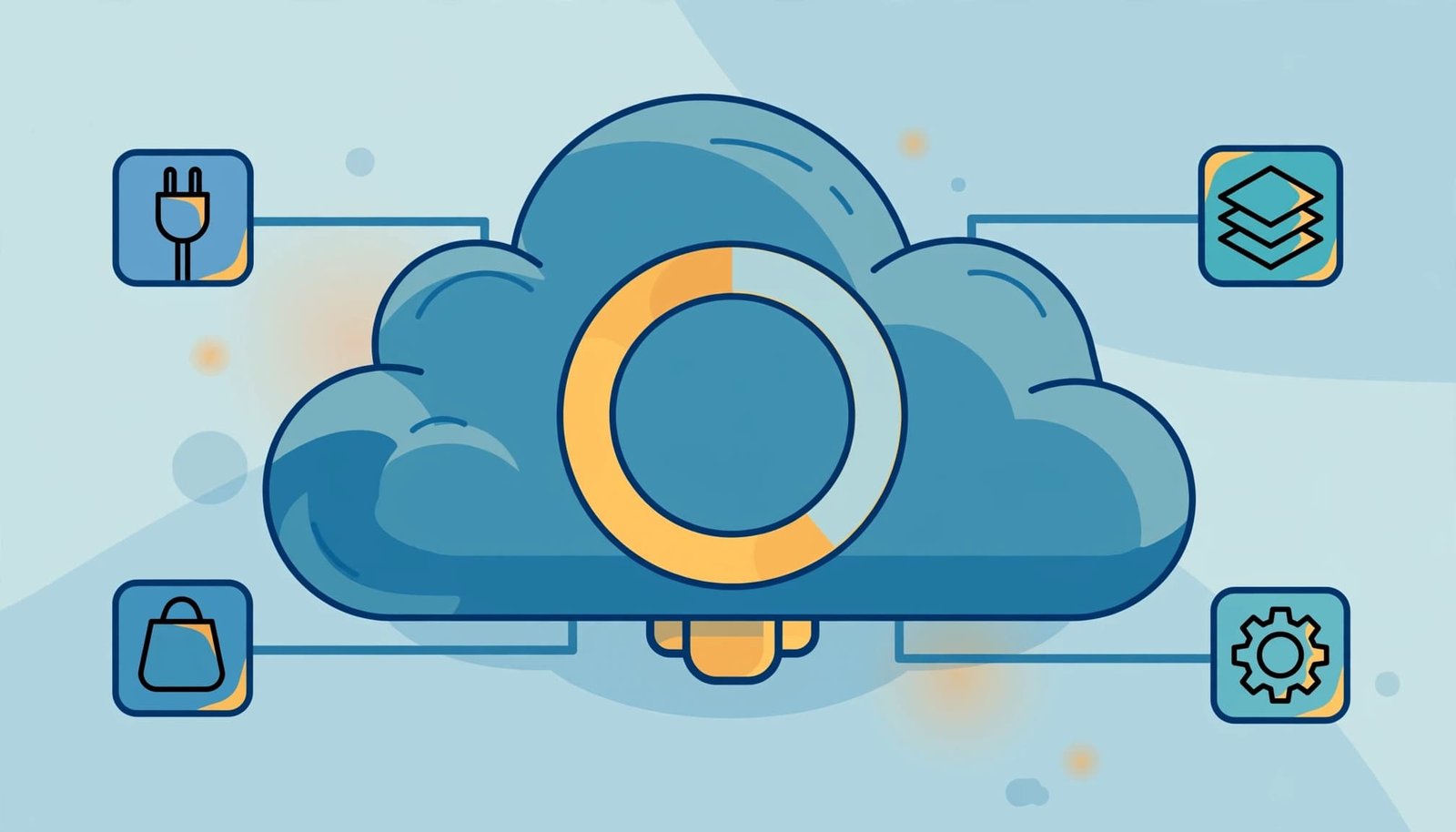
The accounting window moves continuously. Earlier requests leave that window as they become more than 24 hours old. Therefore, available capacity can return gradually rather than through one scheduled reset.
Edition and licenses determine capacity
Salesforce’s API request allocation documentation lists a 100,000-request base allocation for Enterprise Edition. Eligible Salesforce and Salesforce Platform licenses each add 1,000 requests.
Unlimited and Performance editions also have a 100,000-request base, but those license types contribute 5,000 requests each. Developer Edition has a 15,000-request allocation per org.
Other license types have different contributions, and purchased API Call Add-Ons can increase capacity. This makes your org’s displayed allocation more useful than a generic limit quoted online.
Also, keep daily consumption separate from concurrency. Concurrent-request limits concern simultaneous work, while daily allocations concern accumulated usage. They require different fixes.
Diagnose a Daily API Limit Error
Capture the error and inspect Setup
Salesforce documents REQUEST_LIMIT_EXCEEDED for daily API exhaustion. However, read the accompanying message before diagnosing the problem from the error code alone.
Record the timestamp, affected connector, operation, and complete error response. Then have a Salesforce administrator open Setup > System Overview to inspect API requests during the preceding 24 hours.
Setup > Company Information also displays API Requests, Last 24 Hours, alongside the org’s daily allocation.
Compare the incident time with import schedules, exports, connector deployments, and newly activated automations. A sudden increase after a configuration change points toward a different cause than steady growth over several weeks.
Read remaining capacity through the API
Salesforce’s REST API limits resource exposes the maximum and remaining allocation.
Use GET /services/data/vXX.0/limits with your integration’s existing authentication. Replace vXX.0 with its configured API version.
In the response, inspect DailyApiRequests. Its Max value shows the maximum allocation, while Remaining shows available requests. Keeping both values together avoids mistaking a larger allowance for lower consumption.
If API access is already blocked, use Setup rather than repeatedly calling the endpoint. A monitoring request cannot resolve exhausted capacity, and a failed request alone doesn’t identify the consuming integration.
Save a usage snapshot with the incident record so later comparisons have a reliable starting point.
Find the Integration Consuming Requests
Build a timeline across connected systems before changing anything. Start with connector logs, scheduled jobs, recent Data Loader activity, and deployment records.
For Zapier, Make, or other middleware, inspect execution histories for repeated searches, unnecessary updates, and workflows that trigger each other. A record update in one system can cause another update that returns to Salesforce.
Compare actual API requests rather than automation run counts. One workflow execution can perform several searches and writes, so its visible run total may understate Salesforce consumption.
Also inspect full-table syncs and frequent polling. Repeatedly retrieving unchanged records spends requests without improving data freshness.
Where logs support it, group traffic by integration user, application, operation, and timestamp. Integration-specific users improve attribution, although they don’t create separate daily request budgets.
Finally, record which business processes depend on each connector. Lead assignment and billing handoffs deserve different treatment than a nonurgent reporting export. That dependency map makes the next decision safer.
Immediate Mitigations: Reduce Traffic Without Losing Work
Once you identify the likely source, reduce avoidable demand. Salesforce notes that an org affected by daily API exhaustion can remain unable to process API calls for up to 24 hours.
Use these actions in order:
- Coordinate with the Salesforce admin and integration owner. Identify downstream dependencies before changing schedules, disabling jobs, or pausing a connector.
- Pause nonessential high-volume work. Defer discretionary exports, duplicate scheduled jobs, and avoidable full syncs while protecting revenue-critical processes.
- Preserve pending work. Retain queued events, processing checkpoints, and failed-record details before making changes that might discard them.
- Reduce the source of excess requests. Remove redundant lookups or lengthen polling intervals only after assessing freshness requirements with the affected team or vendor.
Avoid disabling an entire integration merely because its logs show the error. Another application may have consumed the shared allocation.
A connector reporting the failure may be a victim of exhausted capacity rather than its main consumer.
If normal business demand consistently exceeds the allowance, eligible licenses or API Call Add-Ons can increase capacity. However, additional capacity won’t correct a looping automation or repeated full export.
Longer-Term Fixes That Lower API Consumption
Efficient integrations move required changes with fewer unnecessary requests. Make these changes in a sandbox first, then coordinate production rollout with the people responsible for dependent workflows.
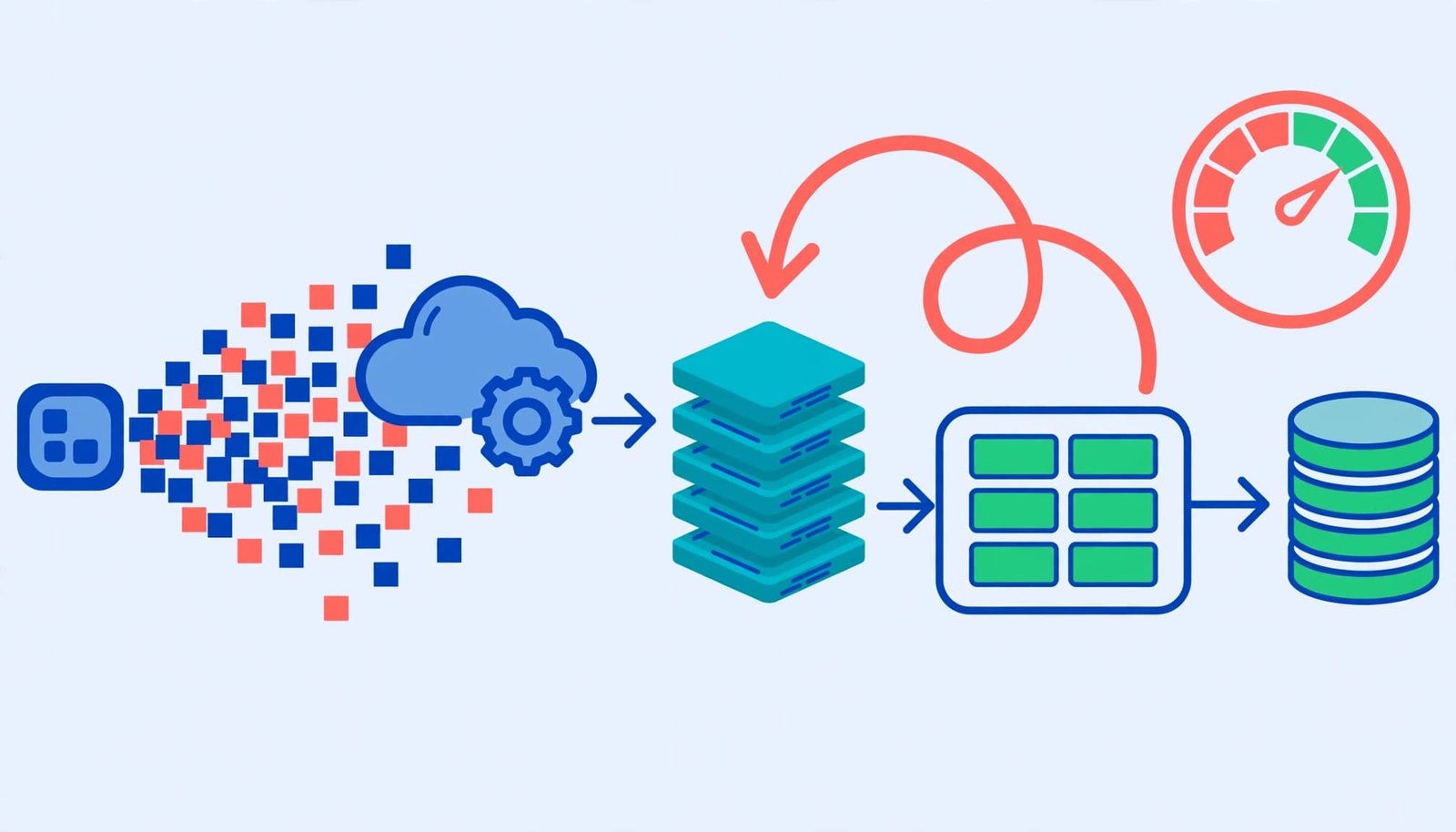
Replace repeated full syncs with incremental work
Salesforce recommends moving cumulative processing toward incremental changes. Retrieve records changed since the last successful checkpoint instead of repeatedly exporting the entire dataset.
Store that checkpoint only after successful processing. Otherwise, a partial failure can leave missing records behind an advanced timestamp.
Also, cache stable reference information when business rules permit it. Repeatedly looking up the same owner or configuration record adds traffic that often can be avoided.
Choose Bulk and Composite resources deliberately
For large imports, updates, upserts, or exports, evaluate Data Loader with Bulk API rather than issuing individual record operations.
However, Bulk API isn’t unlimited. Its processing allocations and job behavior are separate considerations from your org’s remaining daily request capacity.
Composite resources also require care. Salesforce documents the standard Composite resource as counting the series as one API call, while Composite Batch counts its subrequests against limits.
Retain input files, field mappings, and success and error results in access-controlled project storage. Process corrected failures rather than blindly repeating an entire import, and remember that earlier writes may already have triggered downstream automation.
Monitor Usage Before Integrations Fail
Salesforce’s Limit Info response header lets REST clients observe API consumption through Sforce-Limit-Info.
Capture the reported usage and allocation alongside request timestamps. Because those values describe shared org consumption, they provide context rather than a complete breakdown of the current application’s traffic.
Use existing response headers where possible instead of generating frequent monitoring calls solely to inspect usage. Then supplement them with periodic org-level reviews.
Set warning thresholds around your workload. A business running scheduled overnight exports needs enough headroom for those jobs as well as daytime integrations. Percentage-based alerts alone can miss a rapidly accelerating spike.
Track the rate of consumption alongside remaining capacity. Also record job start times, records processed, and failures so administrators can explain changes.
Assign one owner to review alerts and coordinate incidents. For a small business, that may be the administrator or operations lead, but the responsibility should be explicit.
FAQ
Does adding another integration user increase the limit?
A different login doesn’t give an integration an independent daily allocation. Requests still contribute to org-wide usage.
Additional eligible licenses can change the org’s allowance, depending on license type and edition. However, distributing the same workload across more users doesn’t reduce its request count.
Separate integration users can still help identify which application generated traffic and which owner should investigate.
Will Bulk API prevent daily limit errors?
Bulk processing can reduce inefficient record-by-record work, but it doesn’t remove API limits.
Salesforce documents Bulk API and Bulk API 2.0 activity as contributing to daily API usage. Those APIs also have their own processing allocations. Therefore, treat record-volume limits, job settings, and daily request capacity as separate planning inputs when designing a large migration.
Should a failed import be run again in full?
Preserve the original input, success output, and error output before deciding what to process next. Successful rows may already have changed records or triggered emails, tasks, and integration updates.
Correct and isolate failed rows where the tool supports that approach. Reconcile results afterward, including record counts and business-critical fields, rather than treating a completed job as proof that every intended change succeeded.
Conclusion: Fix the Workload Behind the Error
Salesforce API limits are easier to manage when you connect shared org consumption to individual workloads. Diagnose the allocation first, then identify the requests responsible.
Protect pending work while reducing unnecessary traffic, and coordinate changes with admins and integration owners. Incremental syncs, appropriate bulk processing, and useful monitoring provide a stronger long-term fix than repeatedly adding capacity to an inefficient workflow.