A pipeline can look healthy while hiding a basic problem: nobody can tell which people are involved in each deal. In the Salesforce Sales Cloud data model, relationships between Contacts and Opportunities turn a revenue record into an auditable buying process.
Sales reps, revenue operations, and marketing use contact records to document the buying group behind each deal. Set up these relationships well, then enforce a practical minimum without asking reps to document an entire committee on day one.
Key Takeaways
- Opportunity contact roles link individual Contacts to a specific Opportunity and describe each person’s role in the deal.
- Each Opportunity can have multiple contact roles, but Salesforce allows only one primary role.
- Campaign Influence reporting connects campaign members, Contacts, and open Opportunities.
- A validation rule can’t count related contact roles directly. It must rely on a maintained Opportunity field.
- Start with a short role list, require one valid contact across key pipeline stages, and build a complete buying group over time.
How Salesforce Opportunity Contact Roles Connect Revenue Data
An Account stores company-level information, while a Contact represents a person. An Opportunity tracks a revenue pursuit. The contact role joins a person to that specific deal.
Without that bridge, a contact can belong to the right account but remain absent from the deal record. That weakens reporting, handoffs, and marketing attribution.
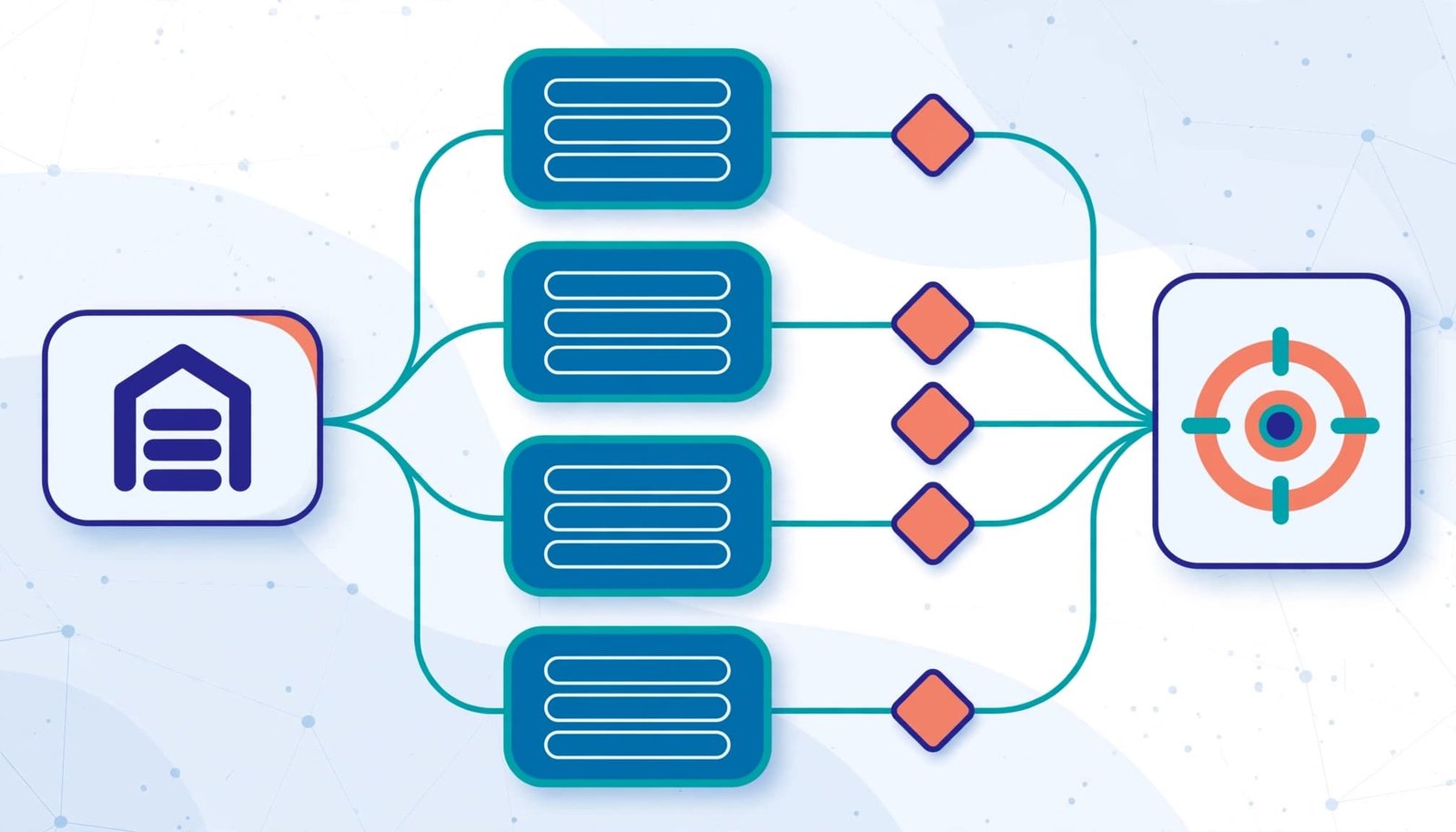
The role record is a junction between people and deals
Salesforce stores this relationship in the standard OpportunityContactRole object. Its core fields include the Contact, the Opportunity, a Role value, and the Primary indicator. The OpportunityContactRole object reference confirms that an opportunity can have only one primary contact.
That limit doesn’t mean a deal has one buyer. It only identifies the person your team treats as the main contact for the opportunity.
A primary contact is only the minimum standard
Consider a $48,000 annual SaaS opportunity. The evaluation may include an operations Champion, an IT Technical Evaluator, a finance decision maker, a Security Reviewer, and a procurement signer. Conversation intelligence sources such as Gong may help teams identify participants, depending on their configuration and process.
Set the Champion as primary if they run the day-to-day evaluation. Then add the other stakeholders with their own roles. This preserves a useful buying group record without pretending every deal follows the same pattern.
A relationship map can complement these records, but it shouldn’t replace the standard relationship record.
A primary contact identifies the main relationship owner. It doesn’t describe the full decision process.
Know the Standard Fields and Governance Limits
Keep the configuration for opportunity contact roles simple at first. The goal is consistent information that salespeople can enter quickly and revenue operations can report on later.
Use role values that match your sales motion
The standard Role field is a picklist. For most B2B SaaS teams, a controlled list such as Champion, decision maker, Economic Buyer, Technical Evaluator, Security Reviewer, Procurement, and End User is enough. A short list also reduces administrative work.
Avoid using this picklist for internal job titles or deal notes. A value such as “VP of IT” belongs on the Contact’s Title field. A role should describe the person’s relationship to the opportunity.
Treat custom fields as an exception
You might add a checkbox such as Verified_Buyer__c or a restricted picklist for participation status. However, ask whether the same answer belongs on the Opportunity, Contact, or junction record before extending it with contact role fields.
Salesforce allows up to 100 custom fields on opportunity contact roles, but its customization considerations also warn that layouts and field-level security affect what users can see and edit. Salesforce Admins can review supported fields, layouts, and field-level security in Object Manager.
Fields such as CurrencyIsoCode appear only in multicurrency organizations. Division depends on the relevant feature and permission settings. Verify current limits and feature availability in official Salesforce documentation. Build and test with a non-admin profile, not only a System Administrator login.
Set Up Contact Roles in Lightning Experience
Start in a sandbox. Test your sales process, record types, page layouts, and permissions together before changing production behavior.
Add the related list where reps work
In Lightning Experience, go to Setup > Object Manager > Opportunity > Page Layouts. Open the layout assigned to the relevant sales users, then add the Contact Roles related list for opportunity contact roles if it’s missing. Save the layout and confirm that the correct Lightning record page uses it.
Next, open a test Opportunity and use the Contact Roles related list to add an existing Contact. Assign a Role and mark one person as Primary. Sales reps should see these controls directly on the Opportunity record.
Salesforce’s Lightning setup guidance for opportunity contact roles starts in Object Manager, where admins can also create supported custom fields and configure object settings.
Review access before calling it a user error
A user may see the Opportunity but still lack access to add or edit a related contact role. Object permissions, record sharing, page layout assignment, and field-level security are separate controls.
Review these checks when Contact Roles don’t appear or can’t be edited:
- Confirm the user’s profile or permission set grants the needed access to Opportunities, Contacts, and Opportunity Contact Roles.
- Verify the user can access the Contact record and its Account Name field.
- Check that the Opportunity page layout includes the Contact Roles related list.
- Test the record with the same user profile and sharing conditions as the seller.
These checks reduce avoidable administrative work. If a separately configured process imports Gong-derived participants, the same object, record-sharing, layout, and field-level security controls still apply.
A new role can also take time to display in a related list. Give Salesforce time to refresh before changing automation or permissions based on one delayed result.
Connect Contact Roles to Campaign Influence and Account Engagement
Marketing attribution is only as sound as the relationships recorded in Salesforce. A campaign touch may be real, but Salesforce needs a documented path from the Campaign Member to the Contact and Opportunity.
Campaign Influence matches people on open deals
For Customizable Campaign Influence, Salesforce scans active campaigns for members who are also assigned a contact role on an open Opportunity. The Campaign Influence matching logic makes clean Campaign Member and contact-role data essential for Campaign Influence reporting.
For example, if a technical evaluator attends a webinar but never appears on the opportunity, that touch may be absent from the influence story. Adding the contact role doesn’t prove the webinar caused revenue. A Gong participation signal is separate from Campaign Members and contact roles. The relationship still supports a more defensible marketing ROI analysis.
Account Engagement uses the same relationship chain
Account Engagement, formerly Pardot, can create a read-only opportunity when a Salesforce Opportunity has a contact role associated with an Account Engagement prospect. When multiple contacts are attached to the CRM opportunity, Account Engagement still creates one opportunity record.
Don’t treat contact roles as a universal requirement for every Account Engagement sync, Pardot segmentation workflow, or attribution view. Instead, verify the exact feature, association windows, licenses, permissions, and current UI terminology in your org. The relationship is especially important when marketing needs a defensible link between prospect activity and pipeline.
Enforce Contact Roles at the Right Pipeline Stage
Early discovery records are often incomplete. A strict requirement for opportunity contact roles at creation creates workarounds and poor adoption. Require evidence when the deal reaches a stage where your team expects a real buying process.
Use a maintained Opportunity field for a validation gate
A standard validation rule evaluates fields on the record being saved. It can’t directly count child Opportunity Contact Role records. The dependable pattern is to maintain a custom checkbox field, such as Has_Contact_Role__c, through automation.
Build a record-triggered flow around contact-role changes. The record-triggered flow evaluates whether the parent Opportunity has a related role, then updates the checkbox. Create the Opportunity field in Object Manager, then create an Opportunity validation rule that blocks a move to a chosen stage when the checkbox is false.
Scope the rule carefully. Apply the gate to later pipeline stages, such as Proposal or Closed Won, and limit it to the applicable record type. Keep this business logic explicit in the rule’s design, including exception handling, rather than hiding it in an untested formula. Use the record type’s Developer Name in formulas, not its display label.
Add a useful error and an exception path
The error should tell the seller exactly what to do: “Add at least one Contact Role before moving this opportunity to Proposal.” A vague message sends users to the admin and slows the deal.
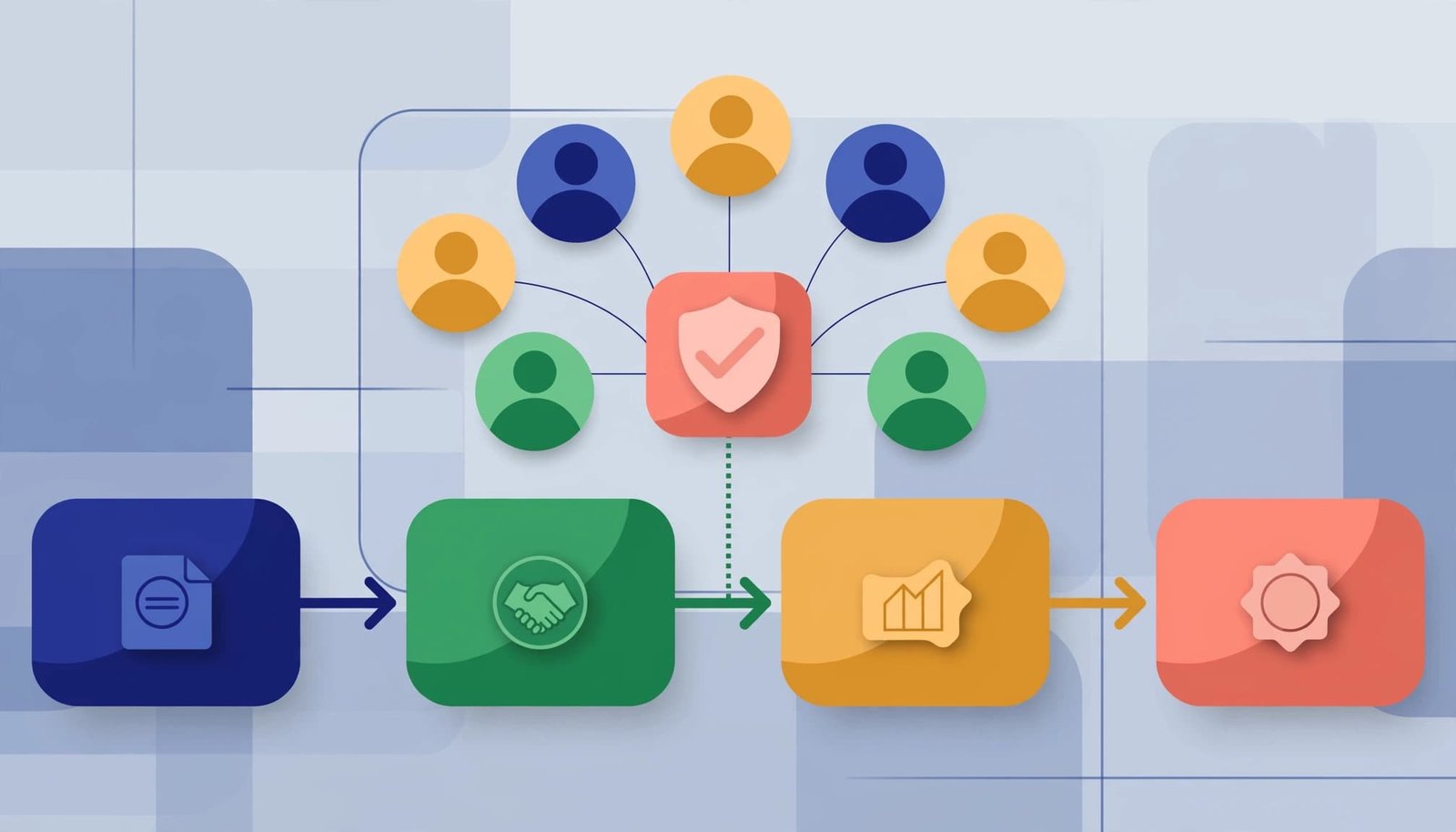
Test role creation, role deletion, stage changes, CSV imports, integration updates, and reopened opportunities. A custom permission bypass is optional for historical cleanup and should be tightly restricted to approved repair work. It must not become a substitute for data quality or make incomplete records look valid.
Automate Coverage Without Overwriting Good Data
Automation should reduce repetitive work, not invent stakeholder relationships in opportunity contact roles. A contact tied to an account isn’t automatically part of every opportunity.
Choose automation based on signal quality
This comparison helps small RevOps teams choose a practical starting point.
| Method | Best use | Maintenance | Main risk |
|---|---|---|---|
| Manual related-list entry | Early rollout and low deal volume | Low | Reps forget the step |
| Salesforce Flow | Repeated, rule-based creation from known data | Medium | Incorrect conditions add irrelevant contacts |
| Integration or managed package | High-volume data from approved systems | Medium to high | Duplicate roles or overwritten primary contacts |
Use automatic creation only when the source is reliable. A record-triggered flow can add a converted lead’s Contact when an Opportunity is created through a controlled process. A separately configured integration or managed package, such as Gong, may provide conversation participants, but each participant requires a verified Contact and Opportunity match. Any such integration must be verified in the particular org. Account Engagement can also be a connected system, depending on configuration.
Before activating any option, define what happens when no Contact match exists. Route the record to an exception queue or data steward rather than creating an unverified person. Assign matching rules, exception handling, and audits to revenue operations.
Preserve the buying group and audit the results
Never let automation replace a manually chosen primary contact without a documented policy. It should supplement the confirmed buying group and avoid creating duplicate records when the Contact already has a role on the Opportunity.
For historical backfills, load in dependency order: Accounts and Contacts first, Opportunities next, then contact roles. Run the work in a sandbox with representative volumes. Check failed rows for missing Contacts, invalid role values, access restrictions, and validation errors.
A monthly audit can reveal the real adoption picture. Report on open opportunities by stage, then compare the count with and without contact roles. Review Gong-derived records when that source is configured. Also review coverage by owner and record type before tightening any rule.
FAQ
What’s the fastest way to add opportunity contact roles?
Open the Opportunity in Lightning Experience, find the Contact Roles related list, choose the option to add a contact, select an existing Contact, choose the role, and save. If the list is unavailable, check the page layout assignment and permissions first.
Does every opportunity need multiple contact roles?
No. Require one valid role when the opportunity reaches a meaningful sales stage. Add more contacts when the deal involves multiple stakeholders. A small transactional deal may have one, while an enterprise SaaS evaluation often needs several.
Why is a campaign missing from Campaign Influence reporting?
Check the relationship chain. The campaign must be active, the person must be a Campaign Member, and that person must appear as a contact role on the open Opportunity. Also review the active influence model, association window, page layout, and field access. If Account Engagement is involved, sync and attribution behavior depends on connected features, licenses, permissions, and org configuration.
Can Gong replace Salesforce contact roles?
No. Gong-derived participant signals, when separately configured, don’t replace manually verified Salesforce relationship records. Use those signals to identify coverage gaps, then confirm the right contacts and roles in Salesforce.
Build a Record Sales and Marketing Can Trust
Salesforce opportunity contact roles turn scattered account contacts into a usable record of who participated in a revenue decision. One primary contact provides a dependable starting point, while additional roles preserve the broader buying group.
The strongest setup is simple, enforceable, and auditable. Give sales reps a short role list and gate later stages with tested automation. Review the data before relying on it for forecasts or marketing attribution. Conversation-intelligence tools such as Gong can support review, but verified contact-role records should remain the source of truth.
