Your CRM can show that a customer bought a plan yet hide which workspace has 25 seats, which tenant is paused, or where a support issue belongs. That gap sends sales, support, and customer success teams hunting through notes and disconnected tools.
When one company can own several product tenants, HubSpot custom objects give each tenant its own record and lifecycle. Start with the data model, because adding an object before defining its job creates duplicate fields and confusing automation.
Decide Whether HubSpot Custom Objects Fit Your Account Model
Custom objects are an Enterprise feature in HubSpot. HubSpot currently lists Marketing Hub, Sales Hub, Service Hub, and Data Hub Enterprise as eligible subscriptions for creating and editing them. Review the current custom-object creation documentation in your own portal before you plan the build.
HubSpot’s developer documentation lists a maximum of 10 custom object definitions for an eligible account. Property and record limits can depend on your subscription, so confirm your present capacity and permissions before design sign-off. Menu names and access rights also vary by portal, especially for users who are not super admins.
HubSpot custom objects earn their place when they describe something with its own identity, relationships, and lifecycle. A product workspace, subscription instance, implementation project, or asset can meet that test. A handful of extra company attributes usually do not.
Keep Company as the primary record when it already matches the account
The Company object should remain your primary account record when it represents the legal buyer and there is one operational SaaS account per company. In that case, add Company properties such as plan, renewal date, customer status, and contracted seats.
This approach works well for a small self-service SaaS business with one organization, one billing relationship, and one workspace. Sales can see the deal, support can see tickets, and marketing can segment the company without jumping between records.
A custom object creates unnecessary complexity when it only duplicates the Company record. You would add another identifier, another property set, new association rules, and another place for workflows to fail. If the Company page answers account-level questions without ambiguity, keep the model simple.
Add a SaaS Account object when the tenant has its own lifecycle
Create a separate SaaS Account object when one Company can own several workspaces, regional instances, client tenants, or independently billed product accounts. This is also useful when a reseller owns the commercial relationship while its customers use separate tenants.
The running example in this guide is a custom object named SaaS Account. Each record represents one product tenant, not the legal customer. The Company remains the commercial account, while the SaaS Account shows product-level facts.
These names and values are adaptable illustrations, not universal fields for every SaaS business.
| Item | Adaptable example |
|---|---|
| Object label | SaaS Account |
| Primary display property | SaaS Account Name: “Northstar Production” |
| Stable identifier | External Account ID: “acct_4521” |
| Tenant status | Account Status: “Active” |
| Subscription tier | Plan Family: “Growth” |
| Product capacity | Contracted Seats: 25 |
That distinction lets one Company own several SaaS Account records without overwriting the details of another workspace.
Map the SaaS Account schema before you configure it
Write down what one SaaS Account record means before you open HubSpot settings. A useful definition might be: “One provisioned customer tenant in our application.” If the team cannot agree on that sentence, it is too early to build.
HubSpot’s Data Model Builder guide can help you sketch standard objects, custom objects, properties, and associations in one place. A simple schema diagram exposes duplication before it reaches an import file or workflow.

For the running example, the relationship map is Company -> SaaS Account -> Ticket. Contacts and Deals connect to the SaaS Account only when that connection matters.
| Object | One record represents | Relationship in this model |
|---|---|---|
| Company | The legal buyer or billing organization | Owns one or more SaaS Accounts |
| SaaS Account | One product tenant or workspace | Belongs to one Company |
| Contact | A person with a business relationship | May access or manage one or more SaaS Accounts |
| Deal | A commercial transaction | Connects to an account when the deal affects that tenant |
| Ticket | A support issue or request | Connects to the affected SaaS Account |
Avoid a universal association rule. For example, a finance contact might belong to the Company but have no reason to appear on every tenant. Meanwhile, a technical admin may need an association to two separate SaaS Accounts.
Choose properties based on facts and source systems
Every property should answer one question and have a known source. The product database may own tenant status and provisioned date. Your billing system may own renewal date and contracted seats. HubSpot can own sales qualification details if no other system supplies them.
The HubSpot data-modeling overview offers a useful reminder: properties work best when each field captures one business fact. Do not combine plan, billing term, and renewal status in a single text field.
For acct_4521, a focused starting schema could look like this:
| Property | Type | Adaptable value | Source of truth |
|---|---|---|---|
| External Account ID | Single-line text, unique | acct_4521 | Product database |
| SaaS Account Name | Single-line text | Northstar Production | Product database |
| Account Status | Dropdown select | Active | Product database |
| Plan Family | Dropdown select | Growth | Billing system |
| Contracted Seats | Number | 25 | Billing system |
| Provisioned Date | Date picker | August 1, 2026 | Product database |
| Renewal Date | Date picker | August 1, 2027 | Billing system |
Do not store every application event in HubSpot. Login activity, feature events, and usage telemetry usually belong in a product analytics tool or data warehouse. Bring over only the metrics that people need for segmentation, workflows, reporting, or account decisions.
Use this schema design checklist before moving into configuration:
- Write a one-sentence definition for what one SaaS Account record represents.
- Select an external identifier that your application can send consistently.
- Name the system that owns every property value.
- Document which associations are required and which are optional.
- Exclude duplicate Company fields unless the tenant truly needs a separate value.
A tenant name can change after a rebrand or consolidation. A product-generated external ID should remain stable, so use it for integrations and duplicate prevention.
Create the SaaS Account object in HubSpot
Once the model has approval, create the object definition rather than importing records first. The path often appears under Data Management and Data Model, but interface labels can change. Follow the current HubSpot documentation in your portal if your navigation differs.
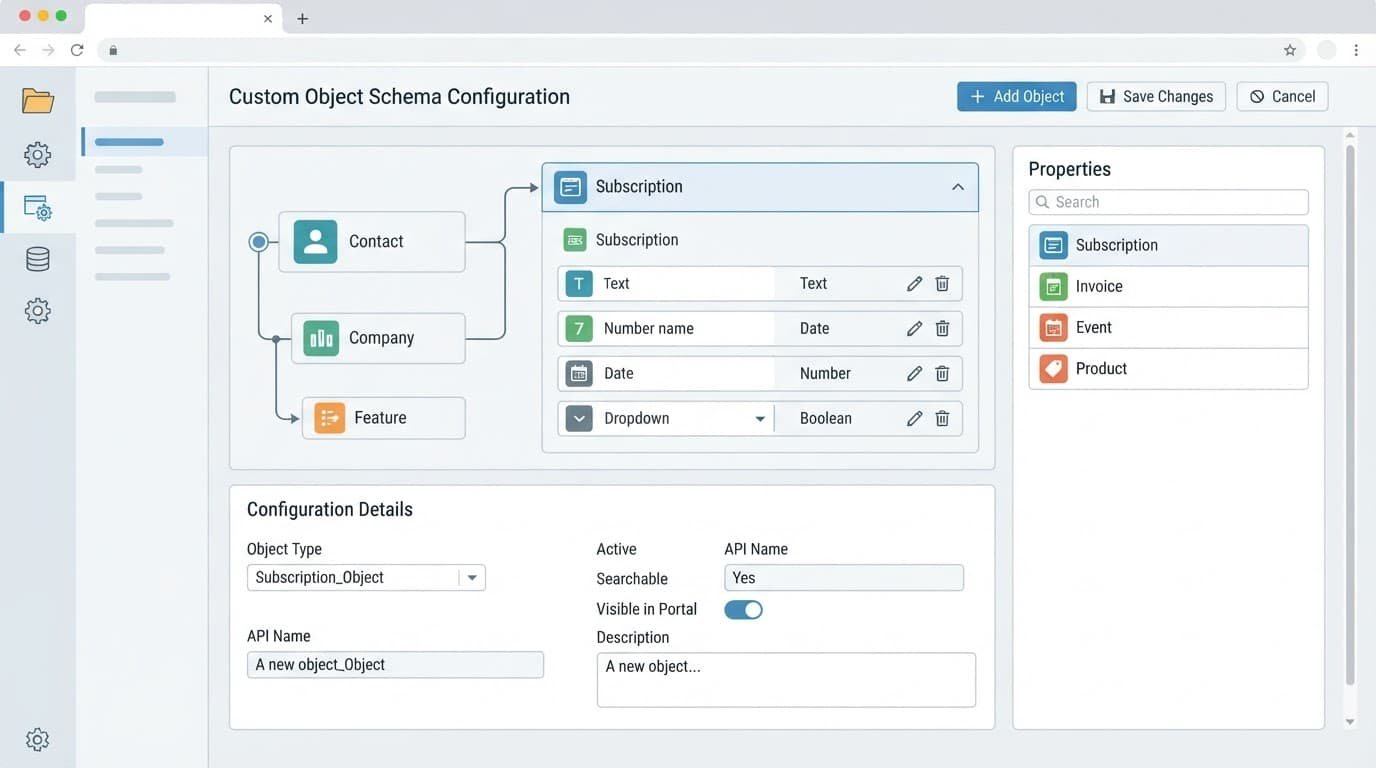
Set up HubSpot custom objects in this order:
- Confirm that your subscription includes custom objects and that your user has the required access. A super admin can verify both if the data model options are missing.
- Create the object with clear singular and plural labels, such as “SaaS Account” and “SaaS Accounts.” Choose a primary display property that helps a human recognize the record in search results and association cards.
- Add the core fields from the approved schema. Create
External Account IDbefore records arrive, then mark it as a unique identifier if it is your integration key. Treat that decision as long-term because changing identifiers later can break sync logic. - Make only indispensable fields required. An integration should not fail because renewal date is unavailable during initial provisioning. For this model, an external ID and account name are stronger candidates for required fields than plan or renewal data.
- Create the Company, Contact, Deal, and Ticket associations you documented. Test their labels on a sample record before the team begins using them.
Use property labels that make sense to non-technical teammates. “External Account ID” is clearer than “tenant_pk,” even if the API sends a technical identifier behind the scenes. Also agree on internal property naming standards before creation, since integrations, exports, and reports can depend on those names.
Keep calculated or derived values out of the first version unless someone has a clear use case. A manually maintained health score or MRR field can drift fast when another platform owns the calculation.
Associate records so the account story stays intact
Associations turn the SaaS Account record into a useful operating view. A support agent should be able to open acct_4521, see the related Company, identify the right technical contacts, and review tickets tied to that specific tenant.
The common starting relationships below are adaptable. Your billing model and customer structure should decide the final rules.
| Association | Recommended relationship | Reason |
|---|---|---|
| Company to SaaS Account | One Company can own many SaaS Accounts | One buyer may operate multiple tenants |
| Contact to SaaS Account | Many-to-many when access spans tenants | A technical admin may manage several workspaces |
| Ticket to SaaS Account | Many tickets can relate to one SaaS Account | Support needs tenant-level context |
| Deal to SaaS Account | Use when a deal changes a specific tenant | Upgrades and expansions may be tenant-specific |
Do not automatically connect every ticket to both the Company and every SaaS Account. A ticket about login access for one tenant should point to that tenant. The Company association can still provide commercial context, but the SaaS Account carries the operational detail.
Sync records with a stable external ID
Your product database should send acct_4521 whenever it creates or updates the running example record. The integration should find the record by that identifier before creating a new one. Otherwise, a renamed tenant can become a duplicate.
No-code tools such as Zapier and Make can handle simple field mapping, but document each trigger and update path. Decide which tool can create SaaS Account records, which tools can update them, and which values HubSpot users may edit manually.
For API-based imports, review HubSpot’s custom-object records API guide. Its batch endpoints accept up to 100 record inputs per request, so larger imports need pagination, retry handling, and a duplicate strategy.
Keep a written field map that includes the source field, HubSpot property, transformation rule, and update direction. For example, the product app may write Account Status, while HubSpot workflows should never overwrite it.
Test records, workflows, and reporting before launch
A custom object can look correct in settings and still fail where people use it. Test the entire path with controlled records before you import every customer account.

Create a test Company, then add the adaptable SaaS Account record acct_4521. Associate a contact, a ticket, and a deal only where the model calls for them. Confirm that each related record appears in the right place.
Use this pre-launch validation checklist:
- Create a record manually and confirm required properties behave as expected.
- Import a small controlled sample and check that unique IDs prevent duplicates.
- Test a product-driven update, such as changing Account Status from Trial to Active.
- Open the record as a typical sales or support user and confirm permissions are appropriate.
- Run each workflow against a test record and inspect the resulting property changes.
- Build a list or report that groups SaaS Accounts by status, plan, or renewal date.
Also test missing data. A record without a renewal date should still load if that field is optional. A ticket without a SaaS Account association should follow a documented fallback rule rather than disappear from support reporting.
Reporting is a practical test of the design. If you cannot answer “Which Active Growth-plan accounts renew next month?” without exports and workarounds, revisit the properties, associations, or source data.
Set post-launch governance before the schema spreads
A SaaS Account object needs an owner after it goes live. Without ownership, teams add fields for one-off campaigns, integrations overwrite human updates, and definitions lose their meaning.
Assign responsibility across the people who depend on the data. Product should own product-generated fields. Billing should own commercial dates and plan values. RevOps or the CRM administrator should approve schema changes and maintain association rules.
Use this post-launch governance checklist:
- Keep a short data dictionary with each property’s meaning, owner, and source system.
- Require a change request before adding fields, values, or associations.
- Review stale properties and unused dropdown values at least quarterly.
- Monitor property and object usage against your portal’s current limits.
- Record integration changes and test them before they write to production records.
A quarterly review prevents the object from becoming a storage bin for miscellaneous account details. It also exposes fields that should move back to Company, to the product database, or to a reporting tool.
Avoid the setup mistakes that create cleanup work
Most custom object problems begin with unclear ownership, not with HubSpot settings. Fixing the model before launch takes less time than merging duplicates after six months of automation.
| Mistake | What goes wrong | Better choice |
|---|---|---|
| Copying every Company property | Teams maintain conflicting values | Keep commercial data on Company unless tenant values differ |
| Using the account name as the ID | Renames create duplicates | Use a stable external product identifier |
| Requiring too many fields | Imports and automations fail | Require only data needed at record creation |
| Associating everything to everything | Record views become noisy | Add associations only when users need the relationship |
| Letting workflows edit source-owned fields | Product and CRM values conflict | Define which system can write each property |
Avoid hiding business rules inside workflow branches. If Account Status controls access, reporting, or support routing, document its allowed values and its source system. A new teammate should not need to inspect automations to learn what “Paused” means.
HubSpot custom objects work best when the record model stays narrow. Add new properties after a real reporting, automation, or customer-support need appears, not because a field might be useful later.
Build a SaaS Account Model People Can Trust
A useful SaaS Account object separates commercial identity from tenant-level operations. Keep Company as the buyer record, give each tenant a stable external ID, and associate only the records that need product context.
The strongest model is one your support, product, and revenue teams can explain in the same terms. Clear ownership keeps that model accurate after launch.
Next, draw a one-page SaaS Account schema, get written approval from billing and support, and create only the fields they agree to maintain. Useful internal topics to read next include HubSpot workflow automation for SaaS, CRM data hygiene, and no-code HubSpot integrations.
